Have you ever tried to place a picture on a colorful background, only to see a white box around it? This can make your design look messy. It is a common problem with JPG images. The good news is that you can change your image into PNG format with a free online tool.
When you convert JPG to PNG, you change your image from one file format to another. PNG supports transparency, which makes it a popular choice for logos, icons, graphics, and website designs. It also uses lossless compression, which helps preserve image data when saving the file.
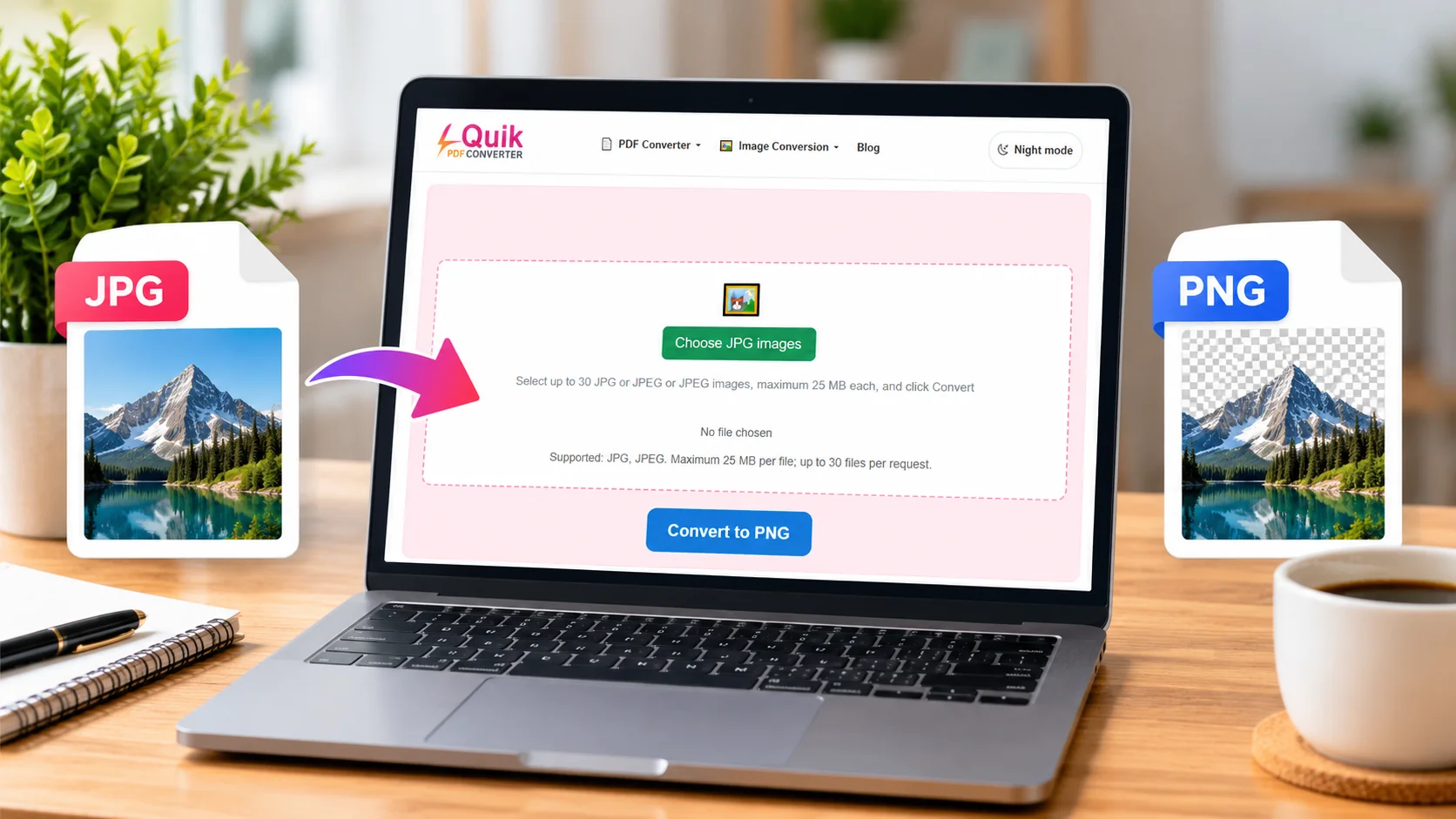
If you want a simple way to change your image format, Quick Convert PDF can help. Its free JPG to PNG converter lets you convert images online without installing extra software.
In this guide, you will learn how JPG and PNG work, how to convert JPEG to PNG, how transparency works, and how to get better results from your images.
What Does It Mean to Convert JPG to PNG?
Converting JPG to PNG means changing an image file from JPG or JPEG format into PNG format. Both formats are used to store pictures, but they work in different ways.
JPG is mainly used for photographs. It makes image files smaller by removing some image information. This process is called lossy compression.
PNG works differently. It uses lossless compression, which keeps the image data intact during normal saving. It also supports transparent backgrounds.
For example, imagine you have a company logo saved as a JPG file. You want to place it on a blue website background. The white area around the logo may look strange. A PNG version can support a transparent background, allowing the logo to blend into the design.
However, remember one important thing: changing JPG into PNG does not automatically remove its background. You need a background removal tool or an image editor to do that.
Understanding JPG and PNG Image Formats
Let's understand these two popular image formats.
JPG (Joint Photographic Experts Group) is a common image format used for digital photographs. It reduces file size, making it useful for websites, social media, and everyday image sharing.
PNG (Portable Network Graphics) is another popular format. It supports lossless compression and transparency. This makes it useful for images that need clear edges and flexible backgrounds.
Both formats have their own benefits. The right choice depends on what you want to do with your picture.
Why Is PNG Better for Transparent Images?
PNG supports an alpha channel, which controls how transparent each pixel can be.
In simple words, this means some parts of an image can be fully visible, partly visible, or completely invisible.
For example:
- A logo can appear without a solid background.
- An icon can sit on any color.
- A product image can blend into a website design.
- A graphic can be placed over another picture.
This is why PNG is often a better choice for designs that need transparent backgrounds.
Why Should You Convert JPG to PNG Transparent?
There are many reasons to convert JPEG to PNG. It is especially useful when you work with website graphics, digital designs, business logos, and product pictures.
Let's look at some common reasons.
1. Keep Your Image Quality
PNG uses lossless compression. This means it does not remove image data when saving the PNG file.
If you open and save an image many times as JPG, repeated lossy compression can reduce its quality. PNG can help avoid additional compression loss during later edits and saves.
However, converting an already compressed JPG into PNG cannot bring back details that were lost when the original JPG was created.
2. Make Images Ready for Logos and Designs
Logos need to look clean on different backgrounds. A transparent PNG makes this easier.
You can use it on:
- Business websites.
- Social media posts.
- Digital advertisements.
- Presentation slides.
- Marketing banners.
- Online store pages.
For example, if your logo has a transparent background, you can place it on a black, white, red, or blue design without a large white rectangle around it.
3. Use Transparent Images on Different Backgrounds
Transparent images give you more freedom.
Imagine you are designing a poster. You want to place a product image over a beautiful background. A transparent PNG lets you do this without showing an unwanted solid box around the product.
This makes your designs look cleaner and more professional.
How to Convert JPG to PNG Online for Free
You do not need advanced computer skills to change JPG images into PNG files. You can use an online converter directly from your browser.
Quick Convert PDF provides a simple way to convert images without downloading a desktop program.
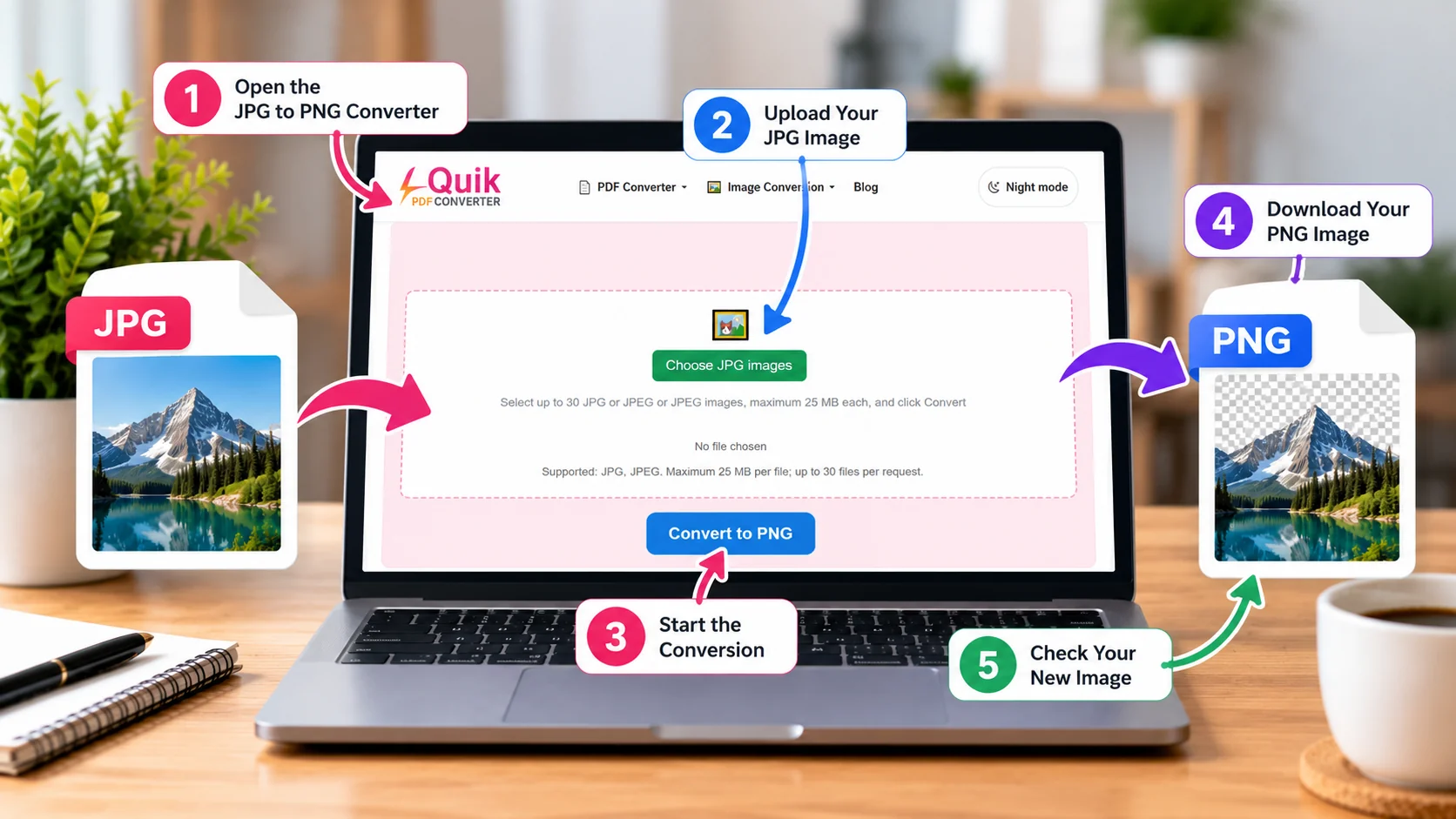
Step-by-Step Guide to Convert JPG to PNG
Follow these simple steps:
Step 1: Open the JPG to PNG Converter
Visit the Quick Convert PDF JPG to PNG tool.
Open the tool in your browser.
Step 2: Upload Your JPG Image
Select the JPG or JPEG image you want to convert from your computer or device.
Make sure you choose the correct image.
Step 3: Start the Conversion
Click the conversion button to begin changing your JPG image into PNG format.
The tool will process your image.
Step 4: Download Your PNG Image
After the conversion is complete, download your new PNG file.
Save it in a folder where you can easily find it later.
Step 5: Check Your New Image
Open the downloaded PNG image and check that it looks correct.
If you need a transparent background, remember that you must remove the original background separately.
How to Make a JPG Background Transparent
This is an important point because many people think that converting JPG to PNG automatically makes the background transparent.
That is not how it works.
A JPG image does not support transparent pixels. When you convert it to PNG, the original background usually stays in place.
To make a JPG background transparent, follow these steps:
- Open your JPG image in a background removal tool or image editor.
- Select the background you want to remove.
- Use the background removal feature to erase that area.
- Check the edges of your subject carefully.
- Export or save the finished image as PNG.
- Open the file to make sure the transparent areas are working.
JPG vs PNG: What Is the Difference?
JPG and PNG may look similar when you open them, but they have different features. Understanding these differences can help you choose the right format for your work.
Here is a simple comparison:
| Feature | JPG Format | PNG Format |
|---|---|---|
| Full name | Joint Photographic Experts Group | Portable Network Graphics |
| Compression | Lossy | Lossless |
| Transparency | Not supported | Supported |
| Image quality | Some data is removed | Image data is preserved during lossless saving |
| File size | Usually smaller | Often larger |
| Best for | Photographs | Logos, icons, and graphics |
| Website use | Photos and banners | Transparent graphics and images |
As you can see, JPG is a good choice for everyday photographs, while PNG is useful for images that need transparency or repeated editing.
The MDN guide to image formats also explains the differences between popular image formats and their features.
Benefits of Using a Free Online JPG to PNG Converter
Why should you use an online JPG to PNG converter instead of installing image editing software?
The answer is simple: online tools make basic image conversion easier.
Here are some important benefits.
1. No Software Installation Needed
You do not need to download a large program to change your image format.
Simply open the converter in your browser, upload your image, and start the conversion.
This is helpful when you are using a shared computer or do not have enough storage space.
2. Easy for Beginners
Not everyone knows how to use professional photo editing software. Some programs have many buttons and features that can confuse beginners.
An online image converter offers a simpler process. You can change your image format without learning complicated editing steps.
3. Works on Different Devices
A browser-based converter can be useful on many devices, including:
- Windows computers.
- Mac computers.
- Android phones.
- iPhones and iPads.
- Tablets.
You can convert images whenever you need them, as long as the tool supports your device and browser.
4. Saves Time
Imagine you need to convert a logo before uploading it to your website. Installing editing software just for one image can take extra time.
A free online converter makes the process easier by allowing you to complete the basic format change in a few steps.
5. Useful for Different Projects
A PNG file can be useful for school projects, office presentations, online stores, website graphics, and social media designs.
You can keep your images in a format that supports transparency and lossless compression.
Does Converting JPG to PNG Reduce Image Quality?
This is one of the most common questions people ask.
The short answer is no. A normal JPG-to-PNG conversion does not add another round of JPG-style lossy compression. PNG uses lossless compression, so it preserves the pixel information it receives.
However, there is something important to understand.
A JPG image may already have lost some details during its original compression. When you convert it into PNG, those missing details do not return.
Think of it like making a copy of an old photograph. You can save the copy in a better file format, but you cannot automatically restore details that were missing from the original.
For example:
- A clear JPG can become a clear PNG.
- A blurry JPG will usually remain blurry.
- A low-resolution JPG will not become a high-resolution image.
- A compressed JPG will not regain its original lost details.
This is why choosing a good-quality original image is important.
Common Problems When Converting JPG to PNG
Sometimes, users expect a perfect result but face small problems. Understanding these issues can help you avoid mistakes.
1. The Background Is Still White
This is probably the most common problem.
You convert your JPG image to PNG, open it, and still see a white background.
Why does this happen?
Because converting the format does not remove the background. It only changes the file type.
Solution: Use a background remover or image editing software before saving the final image as PNG.
2. The PNG File Is Larger Than the JPG
You may notice that your converted PNG file takes up more storage space.
This is normal.
JPG is designed to reduce file size, especially for photographs. PNG uses lossless compression, which can create larger files for detailed photographs.
Solution: If you need a smaller image for your website, consider optimizing the PNG file or using a suitable modern format such as WebP.
3. The Image Looks Blurry
Changing a JPG into PNG will not automatically make a blurry picture clear.
The quality depends on the original image.
Solution: Always upload the highest-quality version of your JPG image available.
4. The Transparent Background Looks White
Some image viewers show transparent areas as white instead of displaying a checkerboard pattern.
This does not always mean that the background is still there.
Solution: Open your PNG file in an image editor that supports transparency. Place a colored layer behind it to check whether the background is actually transparent.
Best Uses of Transparent PNG Images
PNG is a useful image format for many creative and professional tasks.
Let's explore where you can use it.
YAHA PAR APNI IMAGE DALNA KHUD
1. Business Logos
A transparent logo can fit on different website sections, banners, and business documents.
You do not need a separate logo for every background color.
2. E-commerce Product Images
Online stores often use product images with clean backgrounds.
For example, a shoe, watch, mobile phone, or handbag can be placed on different promotional backgrounds.
A transparent PNG makes this process easier.
3. Social Media Graphics
If you create posts for Facebook, Instagram, or other social platforms, PNG graphics can help you build attractive designs.
You can add icons, stickers, logos, and other elements without unwanted solid backgrounds.
4. School and Office Presentations
PNG images are also helpful for PowerPoint slides, educational projects, and office presentations.
You can add transparent graphics over different colors and pictures to make your slides look more organized.
5. Website Icons and Illustrations
Website designers often use PNG files for small graphics, icons, and illustrations.
Their transparent backgrounds make it easier to place them in different website sections.
Tips for Getting Better PNG Results
Want your converted images to look clean and professional? Follow these simple tips.
Choose a High-Quality JPG
Always start with the best version of your image. A larger, clear image usually gives you a better starting point.
Use the Correct Tool for Background Removal
If you want a transparent background, use a proper background removal tool. A format converter alone cannot do this job.
Check the Image Edges
After removing a background, look carefully around the subject.
Hair, shadows, and small details can sometimes be difficult to separate from the background.
Keep the Original Image
Save a copy of your original JPG before making changes. This gives you a backup if you need to start again.
Choose the Right Image Format for Your Needs
Do not use PNG for every picture.
For example, JPG may be better for large photographs because it often creates smaller files. PNG is a better choice when you need transparency or lossless image storage.
Which Image Format Should You Choose?
| Image Requirement | Recommended Format |
|---|---|
| Everyday photographs | JPG |
| Transparent business logo | PNG |
| Website icons | PNG |
| Detailed product photos | JPG or WebP |
| Graphics with clear edges | PNG |
| Images that need transparent areas | PNG |
| Smaller photographic files | JPG or WebP |
You can also read the official W3C PNG specification to understand how PNG stores image information and transparency.
How Does a Lossless Image Converter Help?
A lossless image converter changes an image format without removing image information during the conversion process.
This is useful when you want to keep your graphics clear while working with different file formats.
For example, PNG uses lossless compression. It can store images without losing additional image details during normal saving.
Here are some situations where a lossless image converter can help:
- Saving logos for future editing.
- Keeping icons sharp and clear.
- Preparing graphics for website designs.
- Working with transparent images.
- Saving digital illustrations without additional lossy compression.
However, remember that a lossless converter cannot recover image details that were already lost in a JPG file.
For more technical information, you can explore the official PNG image format documentation.
Frequently Asked Questions (FAQs)
Here are five common questions about converting JPG images into PNG format.
1. How Can I Convert JPG to PNG for Free?
You can convert JPG to PNG for free using an online image converter. Open the Quick Convert PDF JPG to PNG tool, upload your JPG image, start the conversion, and download the PNG file.
You do not need professional editing skills to complete this process.
2. Does Converting JPG to PNG Make the Background Transparent?
No. Converting JPG to PNG does not automatically remove the background. It only changes the image format.
If you want a transparent background, you must first use a background removal tool or an image editor. After removing the background, save the image as PNG.
3. Is PNG Better Than JPG for Image Quality?
PNG is better when you need lossless image storage, transparent backgrounds, or clear graphics.
JPG is often better for photographs because it usually creates smaller files.
The best format depends on how you plan to use your image.
4. Why Is My PNG File Bigger Than My JPG File?
PNG uses lossless compression, while JPG uses lossy compression to reduce file size.
As a result, PNG files can be larger than JPG files, especially when they contain detailed photographs with many colors.
This is normal and does not mean that the conversion has failed.
5. Can I Convert JPEG to PNG on My Mobile Phone?
Yes! You can convert JPEG to PNG using a supported online converter on your Android phone or iPhone.
Open the converter in your mobile browser, select your JPG image, start the conversion, and download the resulting PNG file.
You do not necessarily need to install an additional application.
Conclusion
Converting JPG to PNG is a simple way to change your image format and prepare your pictures for different uses. PNG is especially helpful for logos, icons, website graphics, and designs that need transparent backgrounds. Its lossless compression also helps preserve the image information during saving.
However, remember that changing JPG into PNG does not automatically remove the background or restore lost image details. You need a separate background removal tool if you want a fully transparent image.
If you want a simple way to convert your images, try the free JPG to PNG converter by Quick Convert PDF. Upload your image, convert it, and download your PNG file in just a few steps. Make your image work easier with the right format!