Have you ever tried to upload a PNG image to a website, send it by email, or add it to an online form, only to find that the file is too large or the website does not accept it? This can be frustrating, especially when you need to share the image quickly.
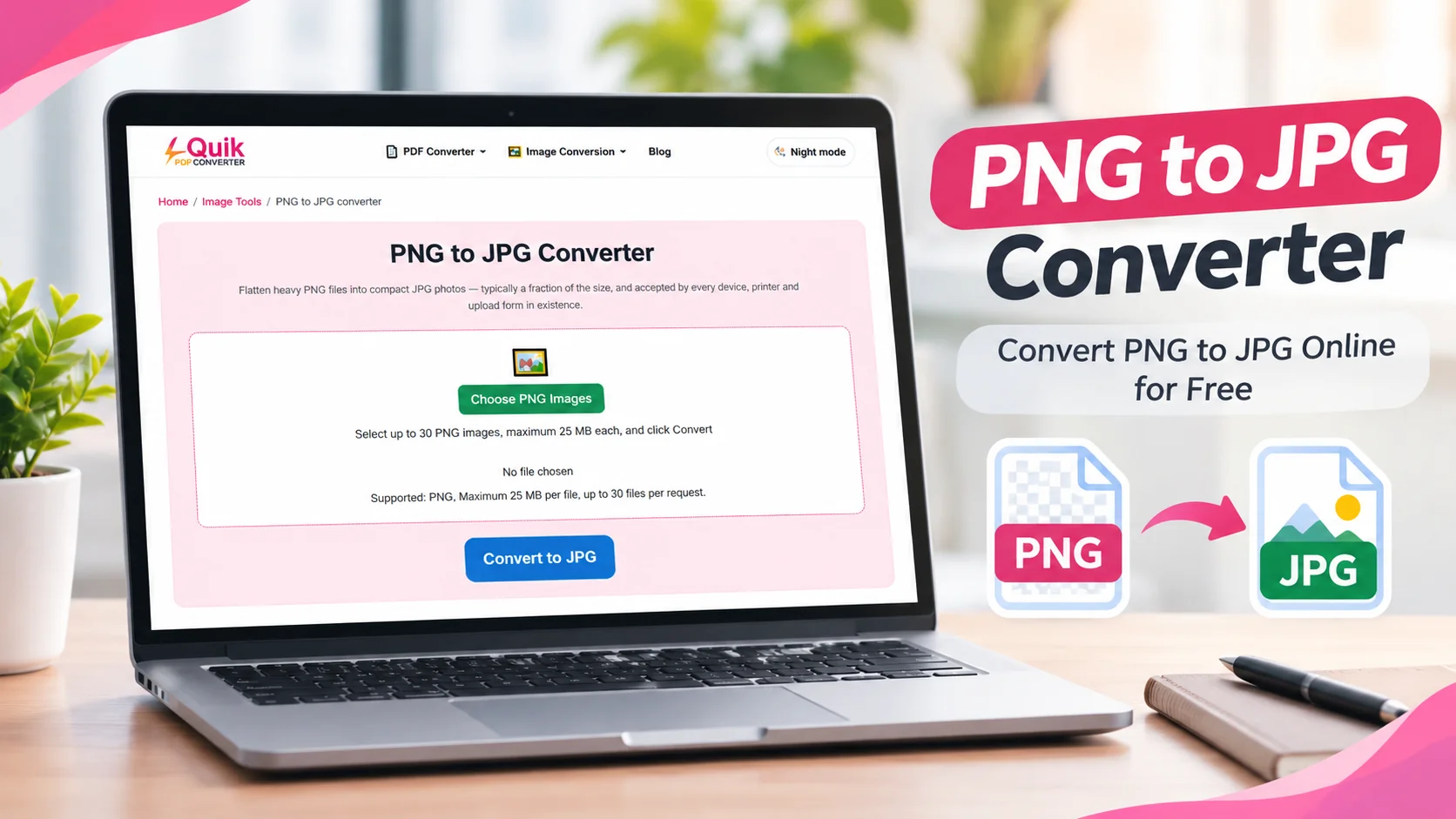
One simple solution is to convert the image from PNG to JPG.
Both formats are popular, but they serve different purposes. PNG is useful when you need sharp graphics and transparent backgrounds. JPG is often a better choice for photographs and smaller image files.
The good news is that you do not need advanced editing skills to change the format. With an online PNG to JPG converter, you can turn a PNG image into a JPG file in just a few steps.
In this guide, you will learn how to convert PNG to JPG online for free, keep the image looking clear, understand what happens to transparent backgrounds, and choose the right format for your needs.
What Is the Difference Between PNG and JPG?
Before converting an image, it helps to understand what makes these two formats different.
PNG stands for Portable Network Graphics. It is an image format that uses lossless compression. This means its compression process preserves the image information rather than removing details to reduce the file size. PNG also supports transparent backgrounds.
JPG, also called JPEG, stands for Joint Photographic Experts Group. It uses lossy compression, which removes some image information to make the file smaller. This makes JPG a popular choice for photographs and other images with many colors and smooth changes in tone.
Here is a quick comparison:
| Feature | PNG | JPG |
|---|---|---|
| Compression | Lossless | Lossy |
| File size | Often larger | Often smaller |
| Transparency | Supported | Not supported |
| Best for | Logos, icons, screenshots | Photos and realistic images |
| Image quality | Preserves original image data | Depends on compression level |
| Common use | Graphics and transparent images | Websites, email, and photos |
Neither format is always better. The right choice depends on what you want to do with your image.
Why Convert PNG to JPG?
You may wonder why you should change a PNG image when it already looks good. There are several situations where JPG can be more useful.
1. Reduce Image File Size
PNG files can become large, especially when they contain detailed images or high-resolution graphics.
JPG compression can reduce the file size of photographs significantly. This can make images easier to upload, email, and share.
For example, imagine you have a large PNG photograph that you need to attach to an email. Converting it to JPG may create a smaller file that is easier to send.
Remember that the amount of size reduction depends on the image and the compression settings.
2. Upload Images to Websites
Some websites, job portals, online forms, and applications accept JPG images but do not accept PNG files.
If a website asks you to upload a JPG or JPEG image, converting your PNG file can help you meet that requirement.
Always check the website's file size and dimension limits before uploading.
3. Share Photos More Easily
JPG is widely supported by computers, phones, browsers, and image-sharing platforms.
If you want to share a photograph with friends, family, or colleagues, JPG is often a convenient format.
It is also useful when you need to send several photographs without creating unnecessarily large attachments.
4. Use Images on Websites
JPG is commonly used for photographs on websites because its lossy compression can reduce file size.
Smaller image files may help pages load faster, especially when visitors use mobile data or slower internet connections.
However, do not convert every image to JPG automatically. Logos, screenshots, diagrams, and graphics with sharp text may look better in PNG or another suitable format.
5. Save Storage Space
If you have many large PNG photographs on your computer or phone, converting suitable images to JPG may help reduce the amount of storage they use.
This can be useful when organizing personal photos, travel pictures, or product images.
How to Convert PNG to JPG Online Free
You do not need to install complicated software to change an image format. An online PNG to JPG converter lets you complete the task through your browser.
You can use the QuickConvertPDF PNG to JPG converter to get started.
Follow these simple steps:
Step 1: Open the PNG to JPG Converter
Open the QuickConvertPDF PNG to JPG tool in your web browser.
You can access the tool from a desktop computer, laptop, tablet, or smartphone. Make sure your internet connection is working.
Step 2: Upload Your PNG Image
Select the PNG image you want to convert from your device.
Before uploading, check that you have selected the correct file. If you have several images with similar names, take a moment to confirm your choice.
Step 3: Start the Conversion
Follow the instructions displayed by the converter and start the conversion process.
The tool will process your PNG image and create a JPG version.
Step 4: Download the JPG File
Once the conversion is complete, download the resulting JPG image to your device.
You can give the file a new name to make it easier to find later.
Step 5: Check the Image Quality
Open the downloaded JPG and compare it with the original PNG.
Look at important details such as faces, text, edges, and colors. If the image looks clear enough for your intended use, it is ready to share or upload.
That is all you need to do. You can change the image format without learning complicated editing steps.
How to Convert PNG to JPG Without Losing Too Much Quality
One common concern is image quality. People want smaller files, but they do not want their pictures to look blurry or damaged.
It is important to understand one thing: JPG uses lossy compression. This means converting PNG to JPG may remove some image information. You cannot guarantee that every converted image will look exactly like the original.
However, you can take a few steps to keep the result looking good.
Choose a Suitable Quality Setting
Some image converters and editing programs let you choose a JPG quality level.
A higher quality setting usually preserves more visible detail but creates a larger file. A lower setting creates a smaller file but may introduce blur, blocks, or other compression artifacts.
If your converter provides a quality option, avoid choosing an unnecessarily low setting.
Keep the Original PNG File
Always keep a copy of your original PNG, especially if you may need to edit the image again.
This is important because saving a JPG again and again can introduce further quality loss.
Think of the PNG as your original copy and the JPG as a version made for sharing or uploading.
Use the Right Image Dimensions
Image dimensions also affect file size and appearance.
For example, a very large photograph may not need its full resolution when used as a small image on a website.
Choose dimensions that match your actual needs. Avoid making an image unnecessarily small, especially if you plan to display it at a larger size later.
Check the Final Image Before Sharing
Do not judge an image only by its file size.
Open the converted JPG and zoom in to check important details. Look for blurry text, rough edges, color changes, or visible compression marks.
If the result does not look good enough, try a higher quality setting or keep the original PNG.
What Happens to a Transparent PNG Background?
This is one of the most important things to understand before you convert PNG to JPG.
PNG supports transparency, but JPG does not support a transparent alpha channel.
So, what happens when you convert a transparent PNG to JPG?
The transparent areas must become solid colors. Depending on the converter, they may appear white or use another background color.
Example: A Logo With a Transparent Background
Imagine you have a company logo with no background.
In PNG format, you can place the logo over a red, blue, or black design without seeing a solid box around it.
After converting it to JPG, the transparent areas are replaced by a solid background. If that background is white, you may see a white rectangle around the logo when placing it on a dark design.
Should You Convert a Transparent PNG to JPG?
It depends on how you plan to use the image.
Choose JPG when:
- You need a photograph with a solid background.
- A website or form specifically requires JPG.
- You want a smaller image for sharing.
- You do not need transparency.
Keep PNG when:
- You need a transparent logo.
- You are working with icons or stickers.
- You need transparent areas in a design.
- You want to preserve the original image without lossy compression.
If transparency is important, do not convert the image to JPG just to change its file extension. Keep it as PNG or choose another format that supports transparency.
When Should You Use JPG Instead of PNG?
The best image format depends on the type of content you are saving.
Here are some everyday examples.
Photographs
JPG is often a good choice for photographs. It can reduce file size while keeping the image visually acceptable at a suitable quality level.
Examples include holiday pictures, portraits, product photographs, and outdoor images.
Website Images
JPG can work well for photographs used in blog posts, online stores, and other website pages.
For simple graphics, screenshots, or images with transparent backgrounds, PNG may be more suitable.
Online Forms
If an online form asks for a JPG or JPEG file, convert your PNG image before uploading it.
Check the required dimensions and maximum file size as well. Changing the format alone may not be enough to meet every upload requirement.
Email Attachments
If you need to send large photographs by email, JPG may help reduce attachment size.
However, the final file size depends on the original image and conversion settings.
Screenshots and Graphics
Screenshots often contain small text, sharp lines, and clear edges. PNG is usually a better choice for preserving these details because JPG compression can make them look less sharp.
Can You Convert PNG to JPG on a Phone?
Yes. You can use an online converter on many modern smartphones without installing a separate image-editing application.
On iPhone
Open your web browser, visit an online PNG to JPG converter, and select the PNG image from your device. Follow the conversion instructions and save the resulting JPG.
Check your Downloads or Files app if you cannot find the converted image immediately.
On Android
Open Chrome or another browser and visit the converter. Select the PNG image from your device, start the conversion, and download the JPG file.
You can usually find the downloaded image in your Downloads folder or the device's file manager.
On Windows or Mac
The process is similar on a desktop computer.
Open the converter in your browser, upload the PNG image, process it, and download the JPG. Save it in a folder where you can find it easily.
The main steps are almost the same across devices, so you do not need to learn a completely different process for each one.
Common PNG to JPG Conversion Problems and How to Fix Them
Sometimes, the converted image may not look exactly as expected. Here are a few common issues and simple solutions.
1. The JPG Has a White Background
Possible reason: The original PNG had transparent areas. JPG cannot preserve them.
Solution: Keep the image as PNG if you need transparency. If you need JPG, use an image editor that lets you place the graphic over a suitable solid background before saving it.
2. The Image Looks Blurry
Possible reason: The JPG was saved with strong compression or at a smaller size.
Solution: If quality settings are available, choose a higher setting. Also, avoid enlarging a small JPG after conversion.
3. The File Is Still Too Large
Possible reason: The original image has very high dimensions or contains a lot of visual detail.
Solution: Consider resizing the image to the dimensions you actually need. A smaller image can reduce file size further, but make sure it remains clear enough for its purpose.
4. The Converted File Will Not Open
Possible reason: The download may be incomplete, or the file may have been saved incorrectly.
Solution: Try downloading it again. Make sure the file has a JPG or JPEG extension and open it with another trusted image viewer.
Frequently Asked Questions
1. How do I convert PNG to JPG online for free?
Open an online PNG to JPG converter, upload your PNG image, start the conversion, and download the JPG file. Check the final image before using it.
2. Does converting PNG to JPG reduce quality?
It can. PNG uses lossless compression, while JPG uses lossy compression. The amount of visible quality change depends on the image and the JPG compression settings.
3. Can I convert a transparent PNG to JPG?
Yes, but JPG cannot keep transparency. Transparent areas must be replaced with a solid background color during conversion. Keep PNG if you need a transparent image.
4. Is JPG the same as JPEG?
Yes. JPG and JPEG refer to the same image format. The two extensions are commonly used for JPEG image files.
5. Can I convert PNG to JPG on my phone?
Yes. You can use an online converter through a mobile browser. Upload the PNG image, follow the conversion steps, and download the JPG to your phone.
Conclusion
Converting PNG to JPG is a simple way to make suitable images easier to share, upload, and store.
PNG is a great choice when you need transparency or want to preserve image details without lossy compression. JPG is often more practical for photographs and situations where a smaller file is useful.
Before converting, think about how you will use the image. If you need transparency, keep the PNG. If you need a JPG for a website, email, or upload form, choose a suitable quality level and check the result.
Ready to change your image format? Try the QuickConvertPDF PNG to JPG converter and turn your PNG image into a JPG in a few simple steps.