AVIF to SVG Converter
Trace a AVIF image into editable SVG path geometry instead of embedding the original pixels.
Original and converted preview
Original
Converted SVG
How to Convert AVIF to SVG
- Upload your AVIF image. Choose or drop a supported AVIF file and inspect the original preview.
- Adjust tracing controls. Select Colour or Black-and-white tracing mode, then adjust detail, smoothing, noise removal, and path simplification.
- Click Convert to SVG. Review the vector preview, compare the traced paths, and download your clean SVG file.
How real vector tracing works:
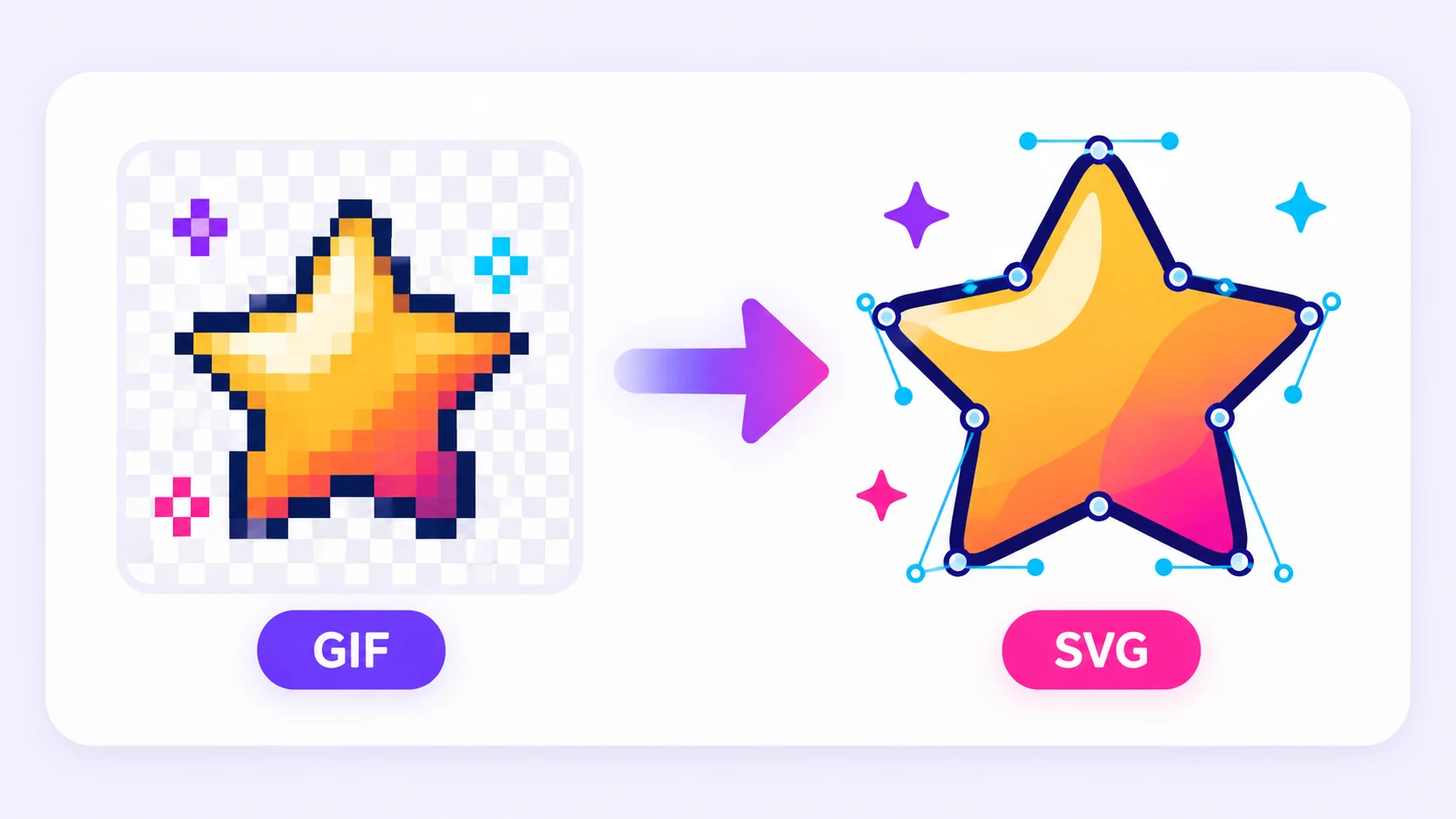
This converter performs true vector tracing. The tool analyzes visible pixel groups, identifies their outlines, and writes those boundaries as real SVG path geometry. It never hides the original bitmap inside an SVG <image> element. This makes the result scalable and editable in vector software, though tracing cannot reconstruct original designer layers, embedded fonts, or mathematically perfect shapes.
Tracing Modern AVIF Source Images
AVIF is engineered for efficient web pixel delivery, not for storing vector path structures. Vector tracing interprets the decoded image appearance and builds new SVG path geometry from visible color regions. Simple emblems, badges, logos, and line art translate cleanly into scalable vectors; highly detailed AVIF photos generate thousands of complex shapes without becoming easier to edit.
Optimizing settings & compatibility workflows:
Start with a restrained color count and medium detail. Increase colors only when adjacent areas merge together, and raise noise removal when compression textures create scattered fragments. Because many design applications lack native AVIF import support but handle SVG files well, vector tracing offers a helpful bridge for simple artwork. For photographic images, converting to PNG or JPG is a far more faithful compatibility workflow than vectorization.
Settings That Affect Vector Quality
Colour Count: Controls how many palette groups the tracer can use. Higher color counts describe shaded artwork better but generate complex multi-layered paths.
Detail vs. Simplification: Higher detail retains intricate boundary points, while path simplification reduces node counts for easier hand-editing.
Smoothing & Noise Removal: Edge smoothing softens jagged pixel variations, while noise removal ignores small stray regions that would otherwise turn into tiny shapes.
Tracing Modes: Use Black-and-white for signatures, stamps, and line drawings. Use Colour mode for flat logos, UI icons, and illustrations.
Simple Background Removal: Automatically detects and removes backdrop colors matching the top-left pixel. This works well for plain backdrops, but is not a substitute for detailed masking around hair, glass, or complex scenery.
When Is AVIF to SVG Conversion Useful?
Design Handoff
Convert AVIF graphics into scalable SVG paths ready for web layouts, presentation decks, or vector design tools like Figma, Adobe Illustrator, and Inkscape.
Digital Publishing
Generate lightweight, high-DPI vector assets tailored for web pages, online documentation, e-commerce product listings, and downloadable PDFs.
Software Compatibility
Make AVIF artwork instantly accessible to colleagues, clients, or production vendors whose software lacks native AVIF import support.
Why SVG matters: SVG is essential when a traced logo, icon, or line drawing needs to scale endlessly across screens without pixelation while keeping XML path geometry editable.
Quality, Privacy, and Honest Limitations
Tracing Limits & Asset Preservation
Keep your source file until you open and inspect the converted SVG. Vector tracing reproduces visible outlines accurately, but it cannot restore missing detail or guarantee 100% identical rendering across legacy applications. To ensure server stability, processing caps apply to file upload size, pixel dimensions, XML node count, and total path complexity.
HTTPS Security & SVG Sanitization
Uploaded files are protected in transit using HTTPS encryption. Processing is strictly limited to generating your requested vector file. Avoid uploading confidential artwork if your organization mandates an offline workflow. Automatic SVG sanitization deliberately blocks embedded scripts, event attributes, external URI references, foreign objects, XML entities, and unsafe CSS styles to deliver a secure, web-ready vector asset.
Related tools
AVIF to SVG Converter — Frequently Asked Questions
- Colour mode: Traces multi-tone AVIF graphics and logos into layered color vector paths.
- Black and white mode: Converts sketches, stamps, and signatures into sharp monochrome vector lines.
Who benefits from converting AVIF to SVG?
These are common examples; the right workflow depends on the file, required output, and your organization’s handling rules.
Designers
Prepare artwork for editing, review, handoff, or placement in another layout.
Web teams
Create browser-ready assets while controlling dimensions, transparency, and file weight.
Marketing teams
Adapt logos, icons, campaign graphics, and approved visual material for another channel.
Everyday users
Open or share an image in a format better suited to the receiving application.
All-in-One PDF & Image Tools
Access every QuickConvertPDF feature in one place. Convert, edit, and optimize your files fast, free, and securely.