SVG to PNG Converter
Render a safe SVG as a real PNG image with precise dimensions and output controls.
Original and converted preview
Original
Converted PNG
How to Convert SVG to PNG Online
- Choose your SVG file and check the safe preview of the original.
- Set a custom size (width and height), pick a 1× to 4× resolution, and choose a transparent background or a solid one. Keep the aspect-ratio lock on so the artwork isn’t stretched.
- Click Convert to PNG, compare the result with your SVG, and download your PNG.
SVG to PNG: What Happens When You Convert a Vector to a Raster Image?
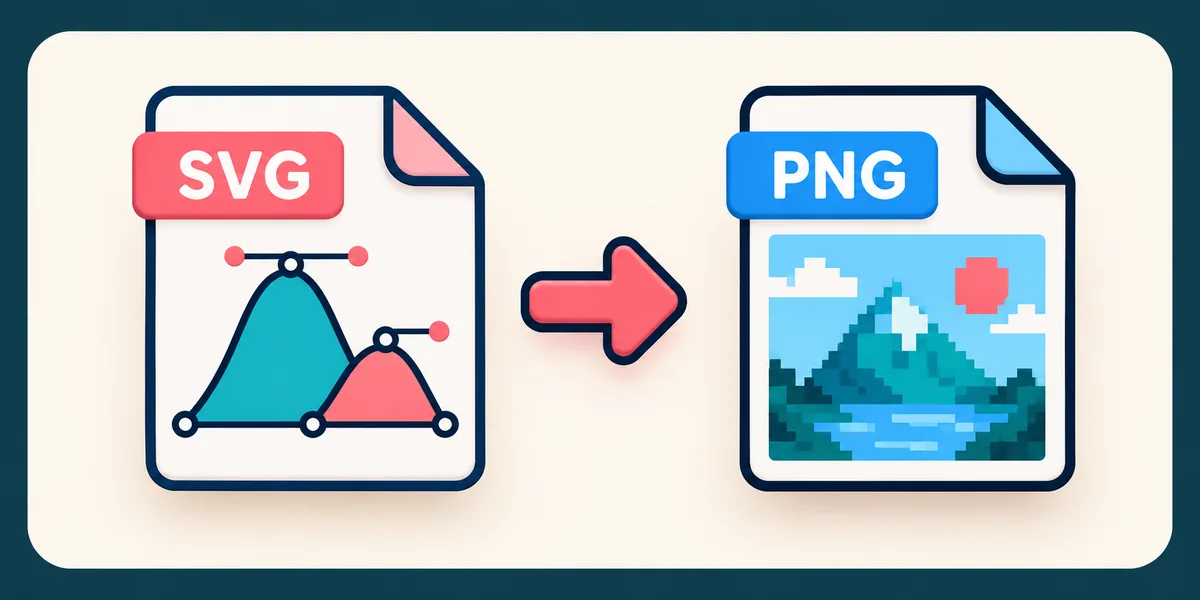
An SVG is a vector file, built from paths, shapes, gradients, and text that stay sharp at any size. A PNG is a raster image, made of pixels. When you convert SVG to PNG, our SVG to PNG converter draws your artwork at the size you choose and saves it as a pixel-based PNG image.
Your SVG is cleaned of unsafe content before it’s drawn, and your original file is never changed. A higher resolution gives you a high-resolution PNG with more pixels, which looks crisp on retina screens and in print, but it also makes the file larger. For example, an SVG set to 200 × 100 pixels at 2× comes out as a 400 × 200 pixel PNG.
When Is PNG the Best Format for an SVG?
PNG is a dependable choice for logos, icons, interface graphics, and diagrams, especially when the artwork has to sit on different backgrounds. Its lossless compression keeps edges and lettering clean, and it supports an SVG to PNG transparent background. Convert SVG to PNG at the size you’ll actually display, since an oversized PNG wastes storage and bandwidth without looking any better.
Check transparency carefully. A transparent background works well for overlays and flexible layouts, but some office programs display it badly, and a solid background can be safer there. After you convert, zoom in on thin lines and compare them with the SVG. If they look soft, raise the width and height or use the 2× option, rather than enlarging a small PNG later.
Settings That Change Your SVG to PNG Result
- Custom size (width and height): Set the image size in pixels before the resolution multiplier is applied. Leave the aspect-ratio lock on to avoid distortion.
- Resolution (1×, 2×, 3×, 4×): Multiplies the pixel count, so you can make a high-resolution PNG for retina screens and printing.
- Transparent or solid background: Keep it transparent for logos and overlays, or use a solid background when your software handles transparency poorly.
- Quality: Size and resolution matter far more than any quality option. Where a quality setting appears, it only affects how the PNG file is encoded, not the shapes in your artwork.
- Fonts: If a font in your SVG isn’t available when the image is drawn, a similar one may be substituted. To avoid this, convert your text to outlines (paths) in your design software before exporting the SVG.
When this conversion is useful
Design Handoff
Prepare artwork for a browser, layout, presentation or design application that expects PNG files.
Publishing
Create a format suited to websites, documents, product listings or downloadable resources.
Compatibility
Make an asset easier to open in the software used by a colleague, client or production partner.
PNG is a practical choice for transparent artwork, interface graphics and screenshots because it preserves sharp edges without lossy compression.
SVG to PNG Quality, Privacy, and Limits
Keep your original SVG until you’ve opened the PNG and checked it. Converting SVG to PNG keeps the visual features the tool supports, but it can’t add detail the SVG never had, and the result may not look identical in every app. Very complex files may be rejected to keep the converter stable, so the tool limits file size, output pixels, and path complexity.
Your upload is protected by HTTPS while it travels to our server, and it’s used only for the conversion you request. Before your SVG is previewed or converted, it’s cleaned of risky content: scripts, event attributes, external references, embedded objects, and unsafe CSS references are all blocked. If your artwork is confidential or your organization requires an approved offline workflow, don’t upload it to any online SVG to PNG converter.
Related tools
SVG to PNG: Frequently Asked Questions
Who benefits from converting SVG to PNG?
These are common examples; the right workflow depends on the file, required output, and your organization’s handling rules.
Designers
Prepare artwork for editing, review, handoff, or placement in another layout.
Web teams
Create browser-ready assets while controlling dimensions, transparency, and file weight.
Marketing teams
Adapt logos, icons, campaign graphics, and approved visual material for another channel.
Everyday users
Open or share an image in a format better suited to the receiving application.
All-in-One PDF & Image Tools
Access every QuickConvertPDF feature in one place. Convert, edit, and optimize your files fast, free, and securely.