OCR PDF to Text
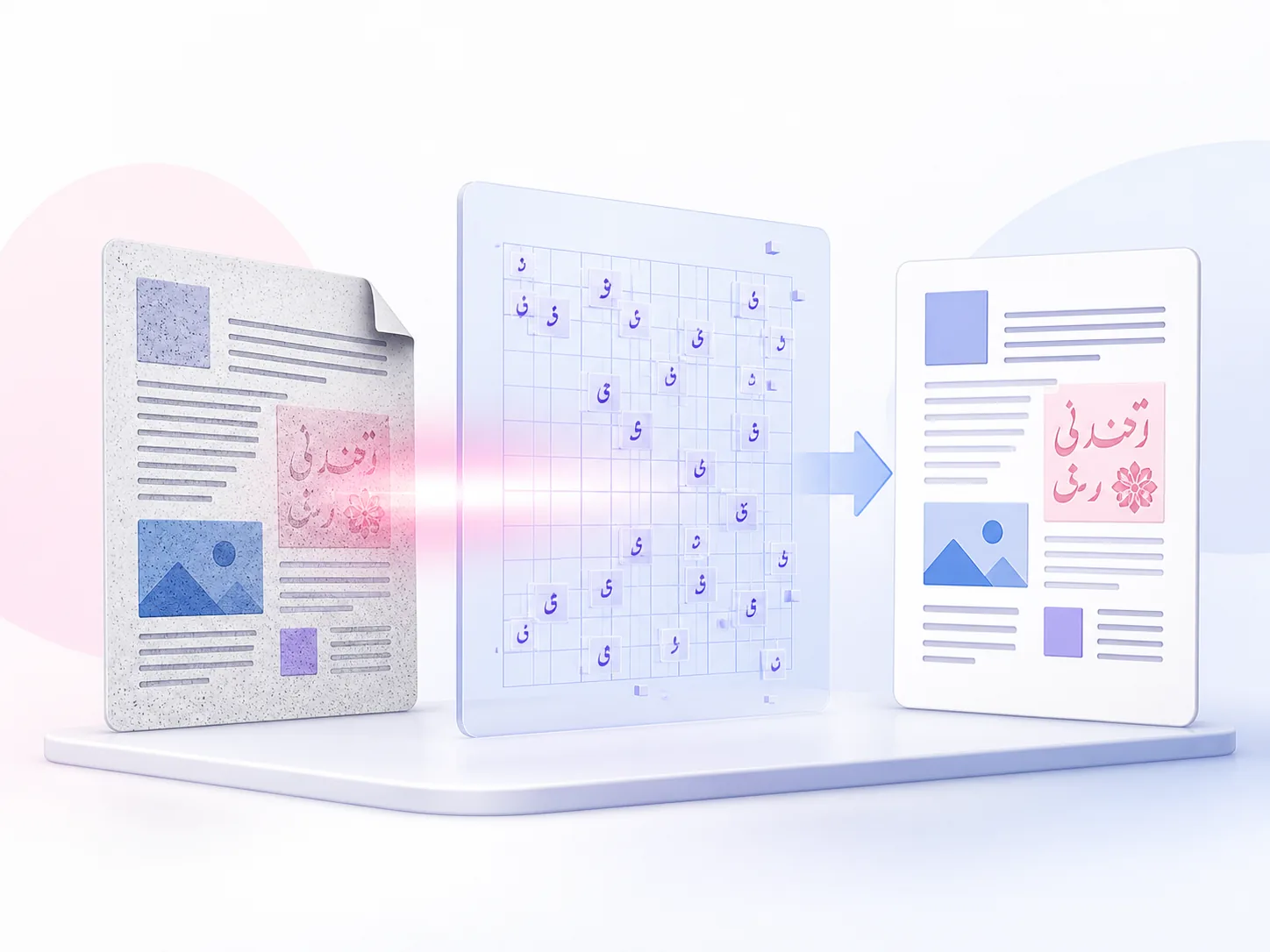
Extract editable text from scanned PDFs using installed English or Urdu OCR data.
How to use OCR PDF to Text
- Upload a scanned PDF and choose a language and page range.
- Start OCR and keep this tab open while pages are processed.
- Review, copy, edit, or download the extracted text.
Benefits
Privacy and security
OCR rasterizes selected pages in memory. A maximum of 20 pages is processed per request.
Who benefits from OCR PDF to Text?
These are common examples; the right workflow depends on your file, the output you need, and any handling rules your organization follows.
Researchers
Turn scanned papers into searchable working text. Convert scanned PDF to text, then check the recognized words against each page to make sure every quote is right.
Archive teams
Old scans are hard to search. Run them through OCR to get searchable text, so legacy files are easier to find, sort, and describe.
Accessibility staff
Image-only documents give screen readers nothing to read. Extract text from the scanned PDF to get a solid starting point for review and remediation.
Administrative users
Need a name, a reference number, or a paragraph from a scanned form? Pull it out with OCR instead of retyping the whole page.
Frequently asked questions
All-in-One PDF & Image Tools
Access every QuickConvertPDF feature in one place. Convert, edit, and optimize your files fast, free, and securely.