PDF Page Extractor
Choose specific PDF pages and download them together without rasterizing the original document.
How to use PDF Page Extractor
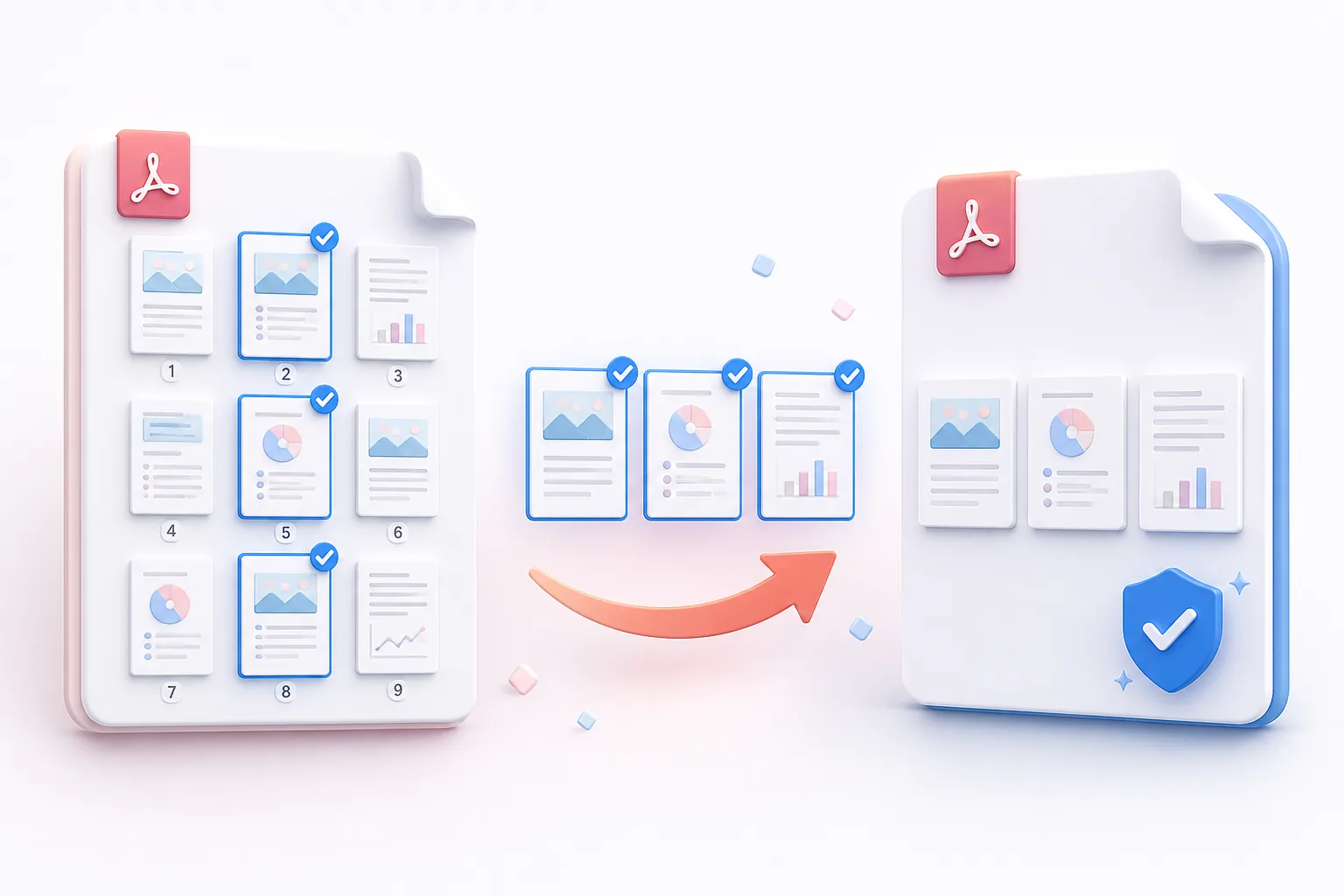
- Upload one PDF up to 25 MB. The tool creates a thumbnail for every page so you can identify content visually before selecting it.
- Select or clear thumbnails, use the selection controls, or enter a page list such as 1,3,5-8. Check the highlighted pages because the output follows the original order.
- Choose Extract Pages to copy the selection into a new PDF. Download the result and confirm that it contains the intended pages before sharing it.
Benefits
Visual selection: thumbnails help you identify the pages you need instead of relying only on page numbers.
Flexible ranges: combine individual page numbers and continuous ranges, such as 1,3,5-8.
Validated input: page references are checked against the uploaded document before extraction begins.
Original quality: selected pages are copied without converting vector text and graphics into screenshots.
Consistent order: extracted pages remain in their original reading sequence across separate ranges.
Focused output: create one smaller PDF containing only the pages needed for review, filing, or distribution.
Privacy and security
The PDF is processed in memory for the requested extraction and is not published.
Who needs to extract pages from a PDF?
These are common examples; the right workflow depends on the file, required output, and your organization’s handling rules.
Legal teams
Separate relevant evidence or agreement pages without circulating an entire case file.
Students
Save a required chapter or reading selection as a smaller, focused document.
Finance departments
Pull a particular invoice, statement, or signed approval from a larger report.
Editors
Isolate pages for correction, review, or use in a newly assembled PDF.
Frequently asked questions
No. Selected PDF pages are copied rather than converted to images.
The selected pages remain in their original document order.
Choose page thumbnails or enter individual pages and ranges such as 1,3,5-8.
Yes. Each copied page retains its original dimensions and orientation.
No. The source file remains unchanged and the selected pages are copied into a separate PDF.
The tool validates the selection and reports page numbers or ranges that fall outside the uploaded document.
All-in-One PDF & Image Tools
Access every QuickConvertPDF feature in one place. Convert, edit, and optimize your files fast, free, and securely.