How to Split PDF Pages
- Choose one PDF up to 25 MB. Select or drop your file into the online PDF splitter.
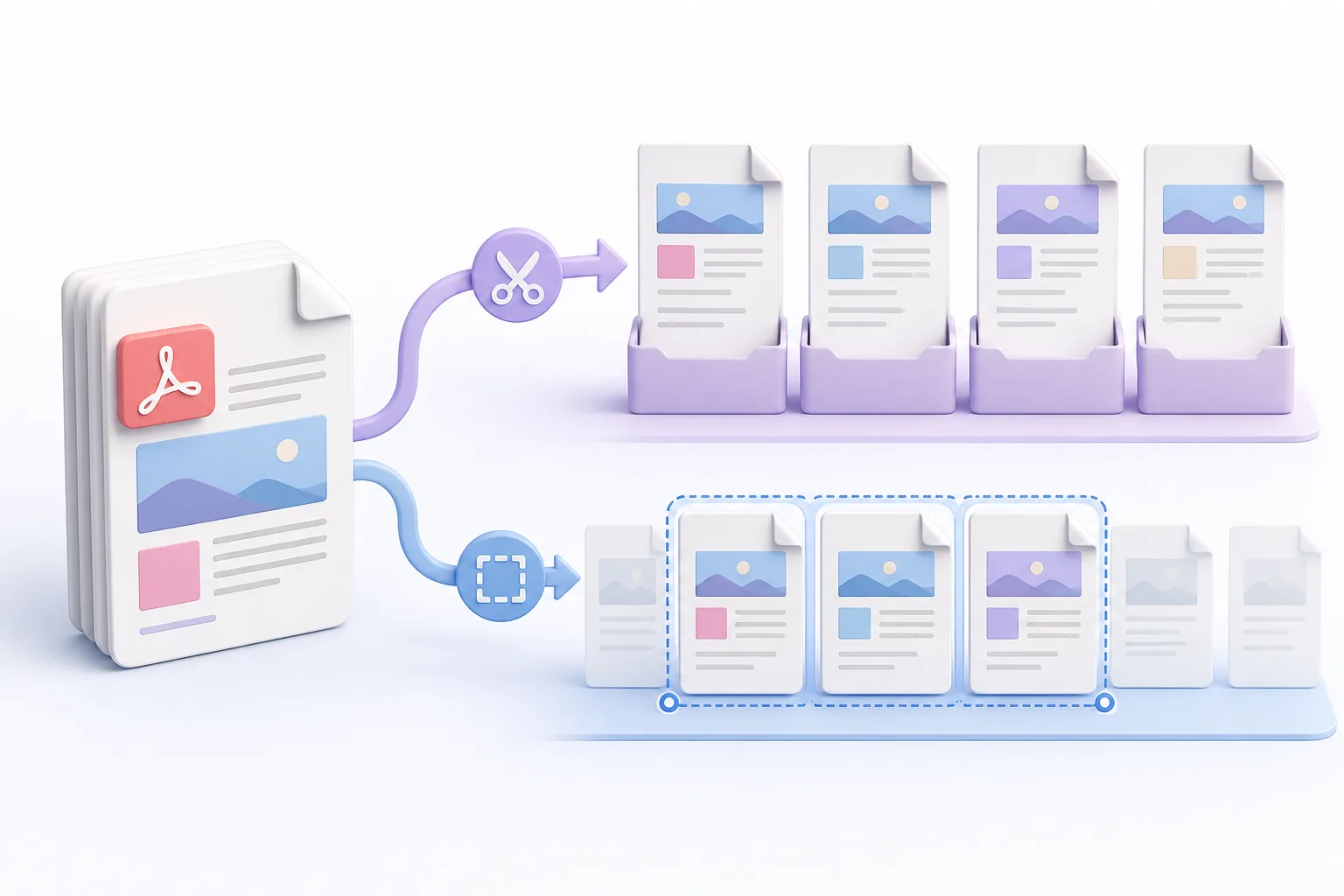
- Select your extraction mode. Choose whether to split PDF sheets into individual single-page files or extract a continuous page range.
- Download your separated files. Choose Split PDF, then download your new PDF or ZIP package.
Benefits of Using an Online PDF Splitter
Separate Every Page
Easily split PDF sheets into individual, standalone PDF files with one click.
Extract Focused Page Ranges
Learn how to split PDF pages by pulling out continuous custom ranges for targeted reports.
Convenient ZIP Downloads
Receive multi-file results packaged neatly together inside a single ZIP archive.
Save Single Pages Easily
Wondering how do I save one page of a PDF? Create smaller documents instantly for fast sharing.
Keep Source PDF Unchanged
Generate freshly separated files while leaving your original upload completely intact on your device.
Avoid Manual Rescanning
Answer how can I separate document pages without printing and rescanning paper copies.
Who Benefits from Splitting a PDF?
These are common examples; the right workflow depends on the file, required output, and your organization’s handling rules.
Human Resources Teams
Use an online PDF splitter to separate employee-specific forms, contracts, and tax records from combined onboarding or payroll packages.
Students
When asking how do I save one page of a PDF textbook extract or lecture pack, extract specific pages to create manageable study guides.
Legal Offices
Learn how to split PDF pages to break bulky legal bundles into individual agreement files, court exhibits, or client disclosure documents.
Administrative Staff
Answer how can I separate multi-page reports by learning to split PDF sheets into lightweight files for email attachments and department filing.
PDF Splitter Frequently Asked Questions
All-in-One PDF & Image Tools
Access every QuickConvertPDF feature in one place. Convert, edit, and optimize your files fast, free, and securely.