How to convert PDF pages to images
- Choose one valid, unencrypted PDF no larger than 25 MB.
- Select JPG for smaller photographic files or PNG for lossless page images.
- Convert the document and download one image or a ZIP containing every page.
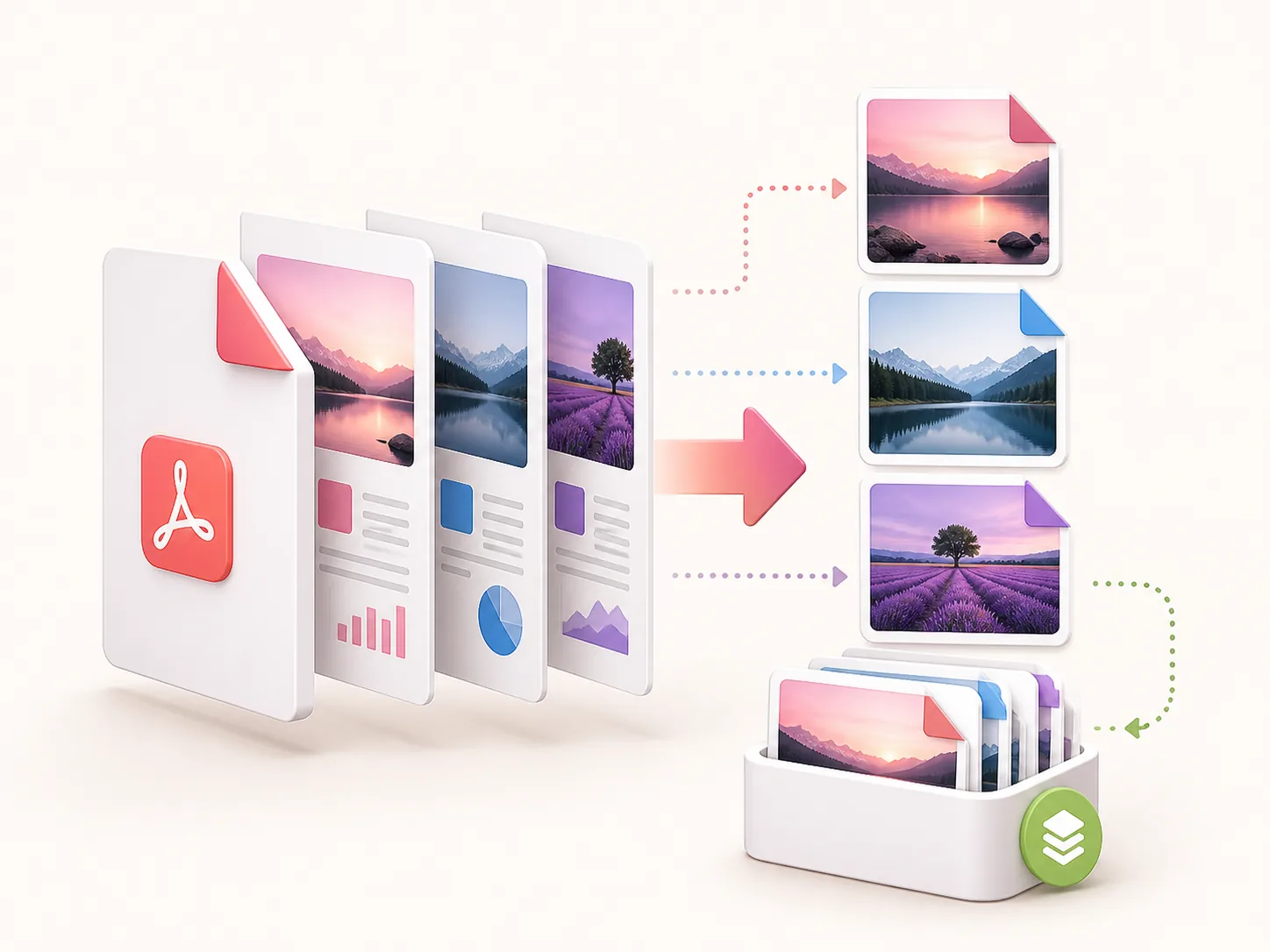
Benefits of Converting PDF to JPG
Turn every PDF page into an image you can use on websites, in slides, or in design projects.
Choose JPG for smaller files, or PNG when you want lossless quality.
Pages are rendered at 150 DPI, a good balance of sharpness and file size for screens.
Got a multi-page PDF? Download all the images in one ZIP instead of saving each page by hand.
Numbered filenames keep your pages in the right order, from page 1 onward.
Convert PDF to JPG on your phone, tablet, or computer, with nothing to install.
Who uses PDF to JPG conversion?
These are common examples; the right workflow depends on the file, required output, and your organization’s handling rules.
Social media teams
Turn a PDF page into an image suitable for a post, preview, or campaign draft.
Website editors
Create page thumbnails and visual previews for document libraries or landing pages.
Teachers
Extract a worksheet or diagram as an image for slides and online lessons.
Print and design teams
Review individual PDF pages in image-based workflows that do not accept PDF input.
Frequently Asked Questions
Yes, it's free, and there's no signup. Upload your PDF, hit convert, and download your images.
Yes. Pick PNG in the format option. JPG gives you smaller files, while PNG is lossless and keeps text and graphics crisp.
Every page becomes a separate image. If your PDF has more than one page, you'll get all the images together in a single ZIP file.
Pages are rendered at 150 DPI. That's sharp enough for screens, slides, and sharing, but a very large print may look a bit soft.
No, protected or encrypted PDFs aren't supported. If you have permission to open the file, upload an unlocked copy instead.
All-in-One PDF & Image Tools
Access every QuickConvertPDF feature in one place. Convert, edit, and optimize your files fast, free, and securely.