WebP to PNG Converter
Convert WebP into lossless PNG with transparency intact — the right choice when you need to edit the image or open it in software that does not read WebP.
Why convert WebP to PNG?
PNG is the safest lossless destination for a WebP that has transparency. Every editor, office suite and operating system reads PNG with alpha correctly, which is not yet true of WebP.
Because PNG is lossless, it is also the format to choose when the image will be edited further — you can re-save it repeatedly without any additional quality loss.
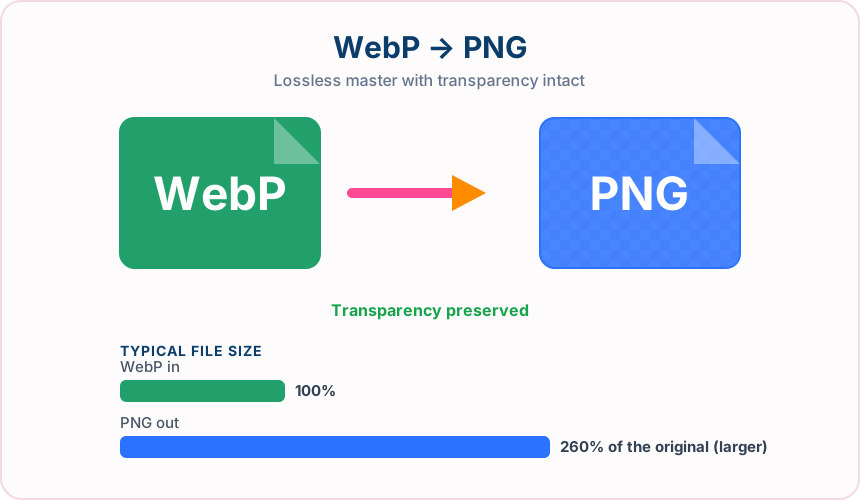
What you get converting WebP to PNG
The alpha channel carries across exactly, with no white background introduced.
PNG stores pixels exactly, so further edits and saves cost you nothing in quality.
Design tools, office suites and OS previews all handle PNG with transparency.
PNG is the expected format when sending assets to a designer or developer.
What to expect: The PNG will usually be larger than the WebP — sometimes considerably, since PNG is lossless. That is expected, not a fault in the conversion.
When to convert WebP to PNG
- Editing a WebP graphic in software that cannot open it
- Handing a transparent logo or asset to a designer
- Placing a cut-out image into a document or presentation
- Creating a lossless master before further editing
WebP vs PNG
| WebP | PNG | |
|---|---|---|
| Compression | Lossy | Lossless |
| Transparency | Yes | Yes |
| Best for | a modern Google format that keeps transparency while cutting file size well below JPG and PNG | a lossless format with full transparency support, ideal for graphics, logos and screenshots |
WebP to PNG — frequently asked questions
Related tools
Who benefits from converting WebP to PNG?
These are common examples; the right workflow depends on the file, required output, and your organization’s handling rules.
Designers
Create a lossless working file that can support transparent areas and crisp edges. A typical use is editing a WebP graphic in software that cannot open it.
Documentation teams
Keep screenshots, diagrams, and interface details clear for guides and reports. A typical use is handing a transparent logo or asset to a designer.
Brand teams
Prepare logos and graphics for layouts that may require transparency. A typical use is placing a cut-out image into a document or presentation.
Image editors
Use a stable intermediate file for cutouts, overlays, and repeated edits. A typical use is creating a lossless master before further editing.
All-in-One PDF & Image Tools
Access every QuickConvertPDF feature in one place. Convert, edit, and optimize your files fast, free, and securely.