Add Page Numbers to PDF
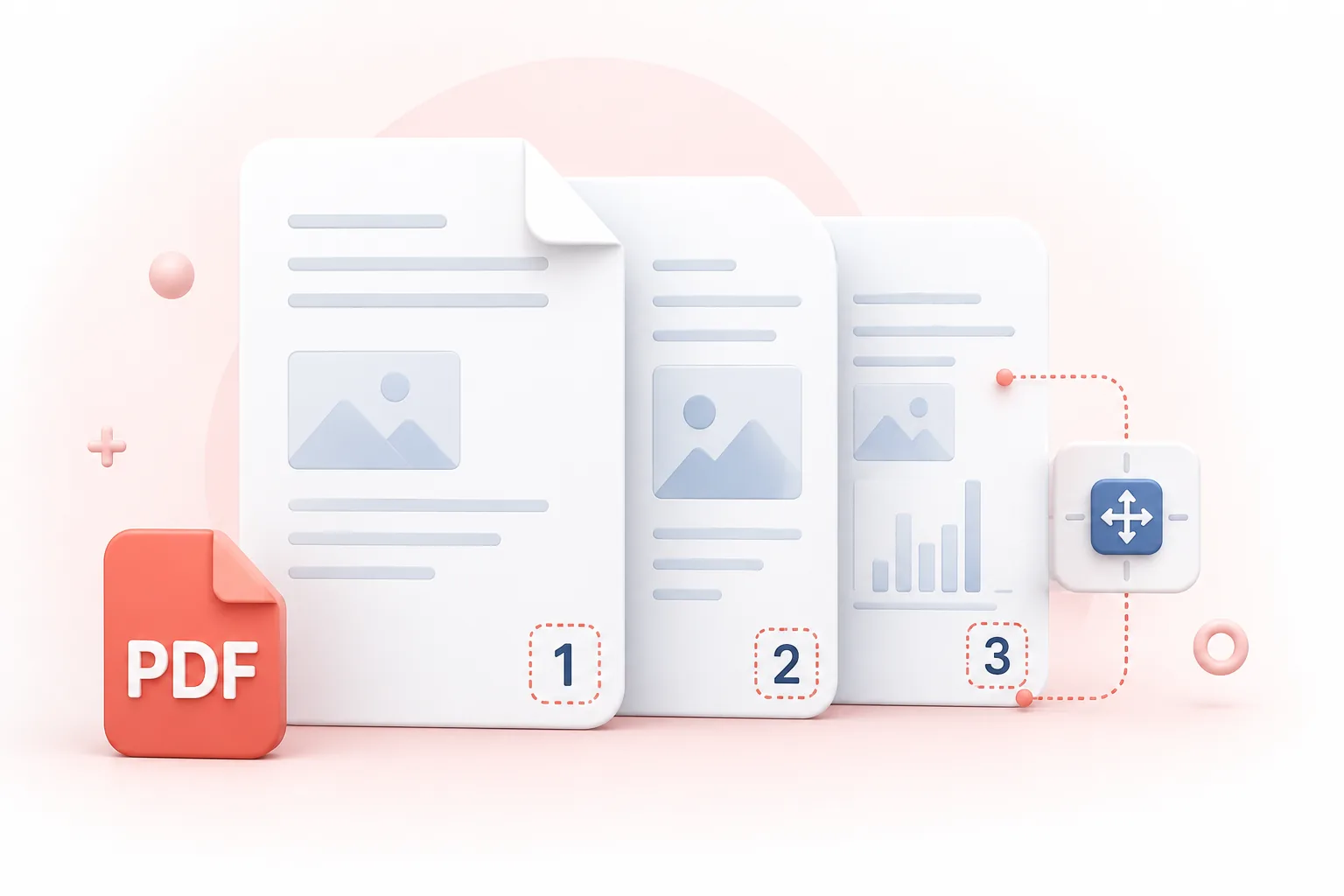
Place configurable page numbers on selected PDF pages while preserving the original page content.
How to use Add Page Numbers to PDF
- Upload one PDF up to 25 MB and confirm the document pages appear correctly in the preview.
- Choose the number position, first and last page, starting value, style, colour, font size, and distance from the page edge.
- Generate the numbered PDF, then check the first and last numbered pages before sharing or printing it.
Benefits
Place numbers in any of six common header or footer positions.
Number only the required page range while leaving covers or front matter untouched.
Start with a custom value when the PDF belongs to a longer document set.
Choose plain numbers, Page 1 labels, or Page 1 of 10 formatting.
Adjust text colour, size, and margin for readable placement on different page designs.
Add numbers without rasterizing the existing PDF page content.
Privacy and security
Numbering happens during the request; uploaded document contents are not logged.
Who benefits from adding PDF page numbers?
These are common examples; the right workflow depends on the file, required output, and your organization’s handling rules.
Report writers
Give readers stable page references in proposals, audits, and research reports.
Legal and compliance staff
Make large document sets easier to cite during review and discussion.
Teachers
Number course packs and worksheets so classes can follow the same sequence.
Event organizers
Prepare programs, booklets, and delegate packs for reliable printing and navigation.
Frequently asked questions
No. Page-number text is placed over the original PDF pages.
Yes. Set the first page to number and the starting number independently.
Yes. Set the first numbered page to page 2 or another page, then choose the starting number printed there.
Choose top left, top centre, top right, bottom left, bottom centre, or bottom right.
Yes. The Page 1 of 10 style includes the current number and the total for the selected numbering range.
No. The source file on your device remains unchanged and the tool returns a separate numbered PDF.
All-in-One PDF & Image Tools
Access every QuickConvertPDF feature in one place. Convert, edit, and optimize your files fast, free, and securely.