Have you ever downloaded an image from a website and found that it ends with .webp instead of .png or .jpg? You may have tried to open it, edit it, or upload it somewhere, only to discover that your usual app does not support it.
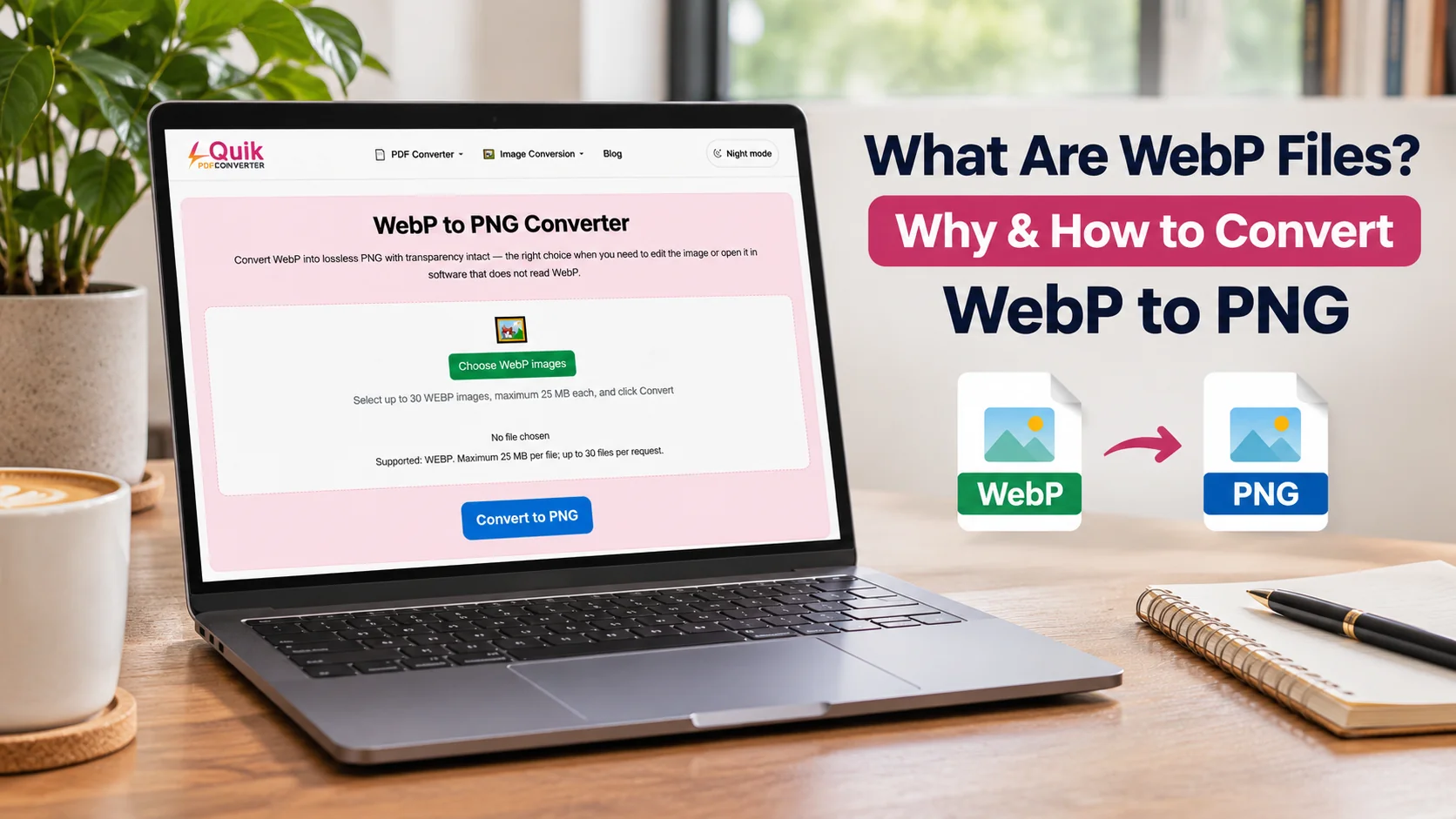
Use our free WebP to PNG converter.
Don't worry! This is a common problem, and there is a simple solution.
So, what are WebP files, and why do so many websites use them? WebP is an image format developed by Google. It helps websites display good-quality images while using less storage space. This can help pages load faster and give visitors a better browsing experience.
However, WebP files do not work with every image editor, website, or application. That is why many people want to convert WebP to PNG.
PNG is a widely supported image format that works well for logos, icons, graphics, and transparent pictures. If you need to change your image format, you can use the free WebP to PNG converter from Quick Convert PDF .
In this guide, we will explain WebP files in simple words, explore their benefits, and show you how to convert WebP images into PNG format without complicated software.
What Are WebP Files?
WebP is a modern image format created by Google. It was introduced to make images smaller without making them look unnecessarily poor.
Think of an image as a package. A large package takes up more space and may take longer to deliver. A smaller package is easier to store and send. WebP works in a similar way by reducing the amount of data needed to store an image.
WebP supports both lossy and lossless compression. This means it can reduce file size in different ways depending on the image and the settings used.
It also supports transparency and animation, which makes it useful for many types of web graphics.
For example, a website may use WebP images for product photos, blog illustrations, banners, and other visual content. These images can help reduce the amount of data visitors need to download.
Understanding the WebP Image Format
You may already know about JPG and PNG. WebP is another image format, but it has some different features.
Here is a simple explanation:
- JPG: Commonly used for photographs and smaller image files.
- PNG: Used for graphics, logos, and images that need transparency.
- WebP: Used for web images that need a balance of image quality and smaller file sizes.
A WebP image usually has the .webp extension. For example, a file named product-image.webp is stored in WebP format.
You can open WebP images in many modern browsers and image applications. However, some older programs may not support them.
How Does WebP Work?
WebP uses compression to reduce image file size.
It has two main compression methods:
- Lossy Compression
Lossy compression removes some image information to make the file smaller. It is often useful for photographs and detailed pictures.
- Lossless Compression
Lossless compression reduces file size without removing image information. It is useful when you want to preserve details, such as in certain graphics and illustrations.
The choice depends on the image and how it will be used.
Why Is WebP Used on Websites?
WebP has become a useful option for website owners, designers, and content creators.
Why? Because images can take up a large part of a webpage's total size. If a page contains many large images, visitors may have to wait longer for it to load.
WebP helps reduce this problem.
1. Smaller Image File Sizes
One of the main benefits of WebP is its ability to create smaller image files.
A smaller image usually needs less data to download. This can be helpful for people using mobile internet or slower connections.
For example, imagine a blog post with ten large photographs. Using properly optimized WebP images may reduce the total amount of data needed to display the page.
2. Good Image Quality
Smaller files do not always mean poor images.
WebP can maintain good visual quality while reducing file size. The actual result depends on the image, compression method, and quality settings.
This makes WebP useful for website banners, product pictures, and blog images.
3. Support for Transparent Images
WebP supports transparency, which means an image can contain see-through areas.
For example, you can create a logo with no solid background and place it over different colors.
This feature is useful for website graphics, icons, and design elements.
4. Animation Support
WebP also supports animated images.
This means it can store multiple image frames in a single file, much like an animated GIF.
It can be useful for simple animations, moving graphics, and visual effects on websites.
Why Convert WebP to PNG?
WebP is useful for websites, but PNG is still important for many everyday tasks. Sometimes, you may need to convert a WebP image because your software does not support it or your project requires a PNG file.
Here are some common reasons to change WebP into PNG.
1. Fix WebP Compatibility Issues
One of the biggest reasons people convert WebP images is compatibility.
Modern browsers can open WebP files, but some older applications, editing programs, and online platforms may not support them properly.
For example, imagine you download a product image from a website. You want to add it to a presentation, but your editing software cannot open the WebP file.
This is where PNG becomes useful.
PNG is supported by many image viewers, editing programs, and design applications. Changing your WebP file into PNG can make it easier to open, share, and edit.
2. Easier Image Editing
PNG is a practical format for many image editing tasks.
You can use PNG images in graphic design software, presentation tools, and other editing applications.
For example, if you are creating a business poster, you may need to add a logo, icon, or product graphic. Converting your WebP image into PNG can make your workflow easier when your chosen software prefers PNG files.
3. Better Support for Graphics and Logos
PNG is commonly used for logos, icons, diagrams, and digital illustrations.
One important reason is its lossless compression. It can preserve image details without adding another lossy compression step.
This is useful for graphics that contain text, sharp lines, and clear edges.
If you need a logo for a presentation or a design project, PNG can be a convenient choice.
4. Easier Sharing and Uploading
Some websites and applications accept only certain image formats.
You may find a platform that allows PNG and JPG uploads but does not accept WebP.
Instead of searching for another version of the image, you can convert the existing file into PNG.
This gives you a more widely supported format for your project.
How to Convert WebP to PNG Online Free
You do not need advanced editing skills to convert a WebP image into PNG format.
With an online converter, you can change the file format directly from your browser. There is no need to install complicated desktop software for a basic conversion.
If you want a simple solution, Quick Convert PDF provides a dedicated WebP to PNG online converter .
Follow these easy steps to convert your image.
Step 1: Open the WebP to PNG Converter
Visit the Quick Convert PDF WebP to PNG tool .
Open the page in your browser. You can use a computer, tablet, or supported mobile device.
Step 2: Upload Your WebP Image
Find the upload option and select the WebP file you want to convert.
Choose the correct image from your device.
Before uploading, check that the file has a .webp extension.
Step 3: Start the Conversion
After selecting your image, click the conversion button.
The converter will process your file and change its format from WebP to PNG.
Wait for the conversion to finish.
Step 4: Download Your PNG Image
Once the conversion is complete, download the new PNG file.
Save it somewhere easy to find, such as your Downloads or Pictures folder.
Step 5: Open and Check Your Image
Open the downloaded PNG image using your image viewer or editing application.
Check that:
- The image opens correctly.
- The colors look right.
- The image dimensions are correct.
- The transparent areas are still transparent, if your original image had them.
That's it! Your WebP image is now available in PNG format.
How to Convert WebP to PNG on Mobile
Do you use your phone to download and share images? You can also convert WebP files on a mobile device.
The process is simple.
- Open your mobile browser.
- Visit the WebP to PNG converter .
- Tap the upload button.
- Select your WebP image from your phone.
- Start the conversion.
- Download the PNG file.
- Open the image from your phone's gallery or file manager.
This method can be useful when you download images from websites and need to use them in social media posts, presentations, or other projects.
You do not need to move the image to a computer just to change its format.
What Is WebP Alpha Channel Transparency?
You may have heard the term alpha channel when working with images.
But what does it mean?
An alpha channel controls how transparent or visible each pixel in an image should be.
In simple words, it decides whether a pixel is fully visible, partly see-through, or completely invisible.
WebP supports alpha channel transparency. This means a WebP image can have a transparent background without needing a solid white or colored area behind it.
For example, imagine you have a company logo with a transparent background. You can place it over a blue, black, or white design without showing an unwanted box around it.
PNG also supports transparency, which is one reason it is popular for logos and graphics.
Does Converting WebP to PNG Keep Transparency?
In a normal conversion, transparency can be preserved when the original WebP contains transparent areas and the converter supports them correctly.
For example:
- A transparent WebP logo can become a transparent PNG.
- A WebP icon with invisible areas can retain those areas.
- A product image with a transparent background can remain transparent.
However, always check the downloaded image.
Some image viewers display transparent areas as white. This does not always mean that transparency has disappeared.
To check properly, open the PNG in an image editor and place a colored background behind it.
You should be able to see the transparent areas clearly.
WebP vs PNG: What Is the Difference?
Both WebP and PNG are useful image formats, but they serve slightly different purposes.
WebP is designed to reduce file size while maintaining good image quality. PNG is widely used when people need lossless image storage and broad compatibility with editing tools.
Here is a simple comparison.
| Feature | WebP | PNG |
|---|---|---|
| File extension | .webp | .png |
| Compression | Lossy and lossless | Lossless |
| Transparency | Supported | Supported |
| Animation | Supported | Standard PNG is not animated |
| File size | Often smaller | Often larger |
| Image editing | Depends on software support | Widely supported |
| Website performance | Useful for optimized web images | Useful for graphics and transparent images |
| Best use | Web images and animations | Logos, icons, and graphics |
Which Format Should You Choose?
The answer depends on your needs.
Choose WebP when you want smaller image files for websites. Choose PNG when you need a widely supported format for graphics, editing, or transparent images.
According to Google's official WebP documentation , WebP supports both lossy and lossless compression, along with transparency and animation.
The MDN image format guide also explains when WebP and PNG are useful for different types of images.
Benefits of Using a PNG Converter to Convert WebP to PNG
An online PNG converter can make image conversion much easier, especially if you only need to change a file format.
Here are some useful benefits.
1. No Technical Skills Required
You do not need to understand image coding or compression methods.
Just upload your image, convert it, and download the result.
2. No Heavy Software Installation
You can use a browser-based converter instead of installing a large image editing program.
This is helpful when you only need to convert a few images.
3. Convenient for Everyday Tasks
Whether you are a student, blogger, designer, or business owner, you may need to change image formats from time to time.
An online converter can help you complete this task without a complicated process.
4. Helps With File Compatibility
PNG is supported by many common applications and platforms.
Converting WebP to PNG can help when a website, editor, or presentation tool does not accept your original image format.
5. Useful for Transparent Graphics
If your WebP image contains transparency, a suitable converter can preserve it in the PNG output.
This is especially useful for logos, icons, stickers, and product images.
Common Problems When Converting WebP to PNG
Although converting images is usually simple, you may sometimes face a few problems.
Let's look at the most common ones and how to solve them.
1. The PNG File Is Larger Than the WebP File
Have you noticed that your converted PNG image takes up more storage space?
This is normal.
WebP is designed to compress images efficiently. PNG may need more storage space, especially for detailed photographs.
Solution: If you need a smaller image for your website, consider keeping the original WebP file or optimizing your PNG image.
2. The Transparent Background Disappears
Sometimes, a transparent image may appear with a white background after conversion.
This can happen because of the converter settings or the way an image viewer displays the file.
Solution: Use a converter that supports transparency and check the downloaded image in an editor that displays transparent areas.
3. The Image Looks Different After Conversion
Some images may look slightly different after changing formats.
This can happen if the original WebP used lossy compression or if the conversion process changes color information.
Solution: Always compare the converted PNG with the original WebP before using it in an important project.
4. The WebP File Will Not Upload
Sometimes, you may have trouble selecting or uploading a WebP image.
The file could be damaged, unsupported by the tool, or too large for its upload limit.
Solution: Check the file extension, try opening the original image, and make sure it meets the converter's requirements.
When Should You Use WebP or PNG?
You do not need to convert every WebP image into PNG. Both formats have useful features.
Here is a simple guide to help you decide.
- Use WebP when you want smaller images for your website.
- Use PNG when you need transparent graphics.
- Use WebP when working with modern website images and animations.
- Use PNG when your editing software requires it.
- Use PNG when you need a widely supported format for sharing and editing.
For website owners, WebP can help reduce image sizes. For designers and people working with graphics, PNG can make editing and sharing more convenient.
The best format is the one that matches your project.
Tips for Getting Better Results When Converting WebP to PNG
Before converting your images, keep these simple tips in mind.
- Keep the original file: Always save a copy of your WebP image before conversion.
- Check image quality: Make sure the original image looks clear.
- Preserve transparency: Choose a converter that supports transparent backgrounds.
- Check image dimensions: Confirm that the converted PNG has the expected width and height.
- Use the correct format: PNG is useful for graphics, while WebP is often better for smaller website images.
- Avoid unnecessary conversions: Changing formats repeatedly does not improve image quality.
- Check the final file: Open the PNG before sharing or uploading it.
These small steps can help you avoid common mistakes and get better results.
Frequently Asked Questions (FAQs)
1. What Are WebP Files Used For?
WebP files are mainly used for website images. They help reduce image file sizes while maintaining good visual quality. WebP supports photographs, graphics, transparency, and animation, making it useful for many types of online content.
2. How Can I Convert WebP to PNG Online Free?
You can use a free online image converter. Visit the Quick Convert PDF WebP to PNG tool , upload your WebP image, start the conversion, and download the PNG file. The process is simple and does not require professional editing skills.
3. Does PNG Support WebP Alpha Channel Transparency?
PNG supports alpha channel transparency, just like WebP. If your original WebP image contains transparent areas, a converter that preserves transparency can transfer those areas into the PNG file.
4. Why Do Some Programs Not Open WebP Files?
Some older applications and image editing programs do not support WebP. This creates WebP compatibility issues when users try to open or edit these files. Converting WebP to PNG can help because PNG is supported by a wider range of applications.
5. Is PNG Better Than WebP for Website Images?
Not always. WebP often creates smaller files, which can help websites load faster. PNG is useful for graphics, transparent images, and applications that require PNG files. Choose the format based on your image type and project requirements.
Conclusion
Now you know what WebP files are, why websites use them, and how they differ from PNG images. WebP is a modern image format that helps reduce file sizes while supporting transparency, animation, and different compression methods. However, you may still face compatibility problems when using certain editing programs, websites, or applications.
That is why converting WebP to PNG can be helpful. PNG offers broad software support, lossless compression, and transparent image features. If you need a quick and simple solution, try the free WebP to PNG converter from Quick Convert PDF. Upload your image, convert it, and download your PNG file. No complicated editing steps are needed!