Have you ever downloaded an SVG logo or icon and found that you could not use it in the app, website, or platform you wanted? Maybe you need a PNG image for a social media post, presentation, website, or product design. You want the image to look clear, but you also want to keep its background transparent.
The good news is that you can solve this problem in just a few steps.
When you convert SVG to PNG, you turn a vector image into a regular image file that works with many common apps and websites. You can also keep the transparent background, so your logo or design looks clean wherever you place it.
In this guide, you will learn what SVG and PNG files are, why you may need to convert between them, and how to convert SVG to PNG online. You will also discover how to keep transparency, choose the right image size, and avoid common conversion problems.
Whether you are a designer, business owner, student, or someone who works with images, this guide will help you get the result you need.
What Is an SVG File?
SVG stands for Scalable Vector Graphics. It is an image format used for graphics such as logos, icons, charts, illustrations, and simple drawings.
Unlike regular image files, SVG graphics are based on shapes, lines, paths, and other drawing instructions. This means you can make an SVG image larger or smaller without losing the sharp edges that make it look clean.
For example, imagine you have a small company logo. If the logo is saved as an SVG, you can use it on a business card or a large banner without the usual pixelation that can happen when enlarging a small raster image.
SVG is useful for:
- Company logos and brand graphics.
- Website icons and buttons.
- Simple illustrations.
- Diagrams and charts.
- Scalable web graphics.
The W3C SVG specification explains how SVG describes two-dimensional graphics using shapes, images, text, and other visual elements.
However, not every app or platform handles SVG files in the same way. Some tools do not support SVG uploads, while others may display the file differently. That is one reason people convert SVG images into PNG.
What Is a PNG File?
PNG stands for Portable Network Graphics. It is a popular image format used on websites, in documents, and across many digital platforms.
Unlike SVG, PNG is a raster image format. It stores an image as a grid of tiny colored squares called pixels.
PNG is especially useful because it supports transparent backgrounds. This means you can save a logo or icon without adding a solid white box behind it.
For example, if you have a company logo with a transparent background, you can place it over a colored website header, a photograph, or a presentation slide. The background behind the logo will remain visible.
PNG is commonly used for:
- Transparent logos.
- Website graphics.
- Social media designs.
- Icons and illustrations.
- Screenshots and diagrams.
- Images used in presentations.
According to MDN's image format guide, PNG supports lossless compression and alpha transparency. This makes it a useful choice for graphics that need clear edges and transparent areas.
Why Convert SVG to PNG?
SVG is excellent for scalable graphics, but PNG is often easier to use in everyday projects.
Here are some common reasons to convert an SVG file to PNG.
1. Better Compatibility With Apps and Platforms
Some websites, editing tools, document programs, and social platforms do not accept SVG uploads.
If you try to upload an SVG and the platform rejects it, converting it to PNG may solve the problem.
PNG is widely supported by browsers and common image-editing applications. This makes it a practical format for sharing and using graphics.
2. Keep a Transparent Background
A transparent background makes an image easier to use in different designs.
Imagine you have a black logo. If it has a white background, placing it on a dark website header may look awkward. You may see a white rectangle around the logo.
When you convert SVG to PNG transparent, you can preserve the transparent areas in the original design, provided the SVG itself has no solid background behind the artwork.
This is useful for logos, icons, stickers, and other graphics.
3. Use Graphics on Social Media
Many people create SVG logos and illustrations but need PNG files for their social media designs.
For example, you may want to add a company logo to a Facebook post, an Instagram graphic, a YouTube thumbnail, or a promotional image.
Converting SVG to PNG for social media makes it easier to place your graphic into common design tools and image layouts.
Just remember to choose a suitable image size for the platform and design you are creating.
4. Add Images to Documents and Presentations
You may need to insert a logo or icon into a PowerPoint presentation, Word document, PDF, or school project.
Some programs support SVG, while others may have limited support or display differences. A PNG version can be a convenient alternative.
5. Share Images More Easily
PNG files are familiar to most users. You can send them through email, messaging apps, or other file-sharing services.
If someone does not know how to open or edit an SVG file, a PNG image may be easier for them to view.
How to Convert SVG to PNG Online With a Transparent Background
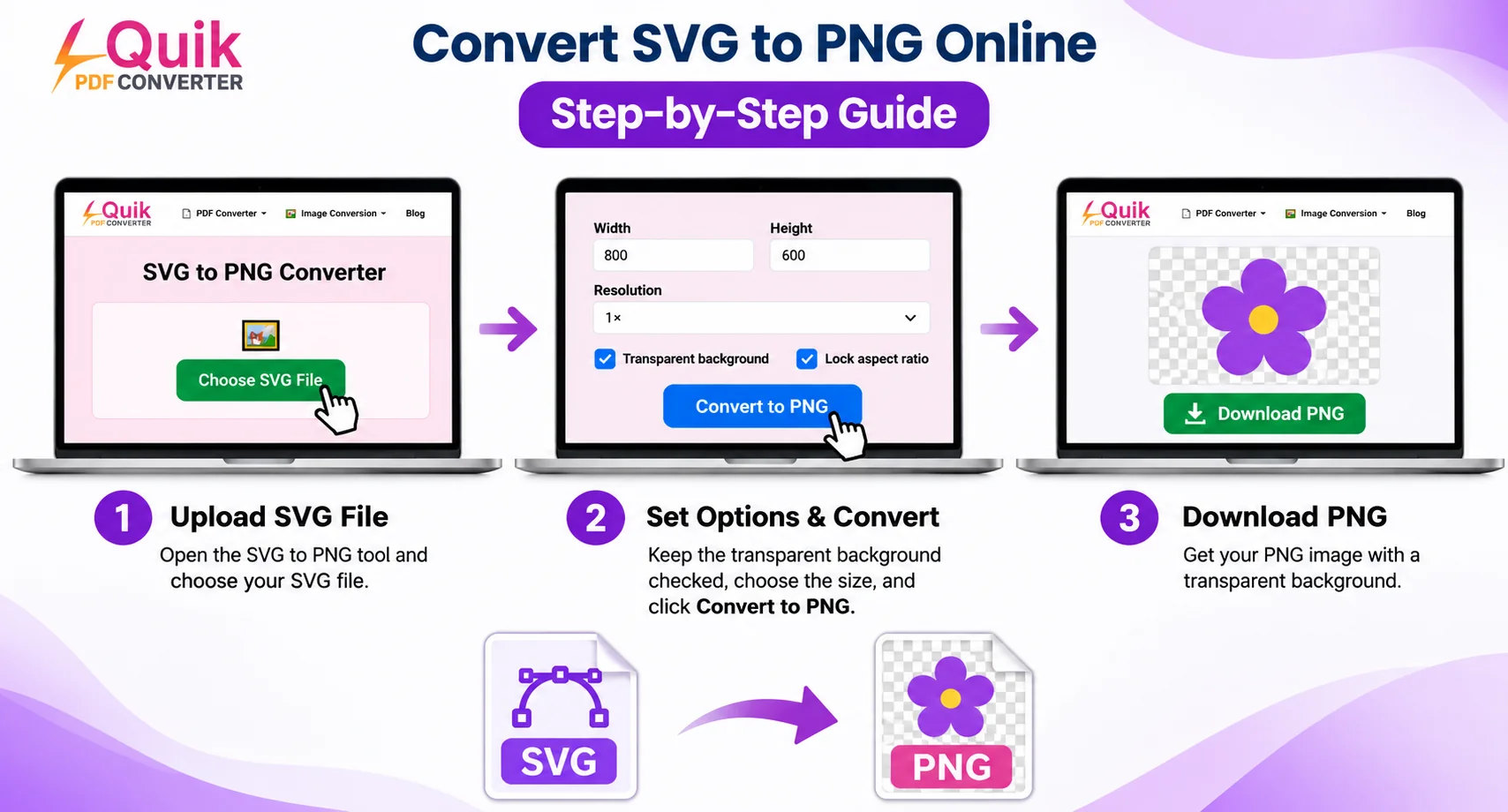
You do not need advanced design skills to convert an SVG file. An online converter can make the process simple.
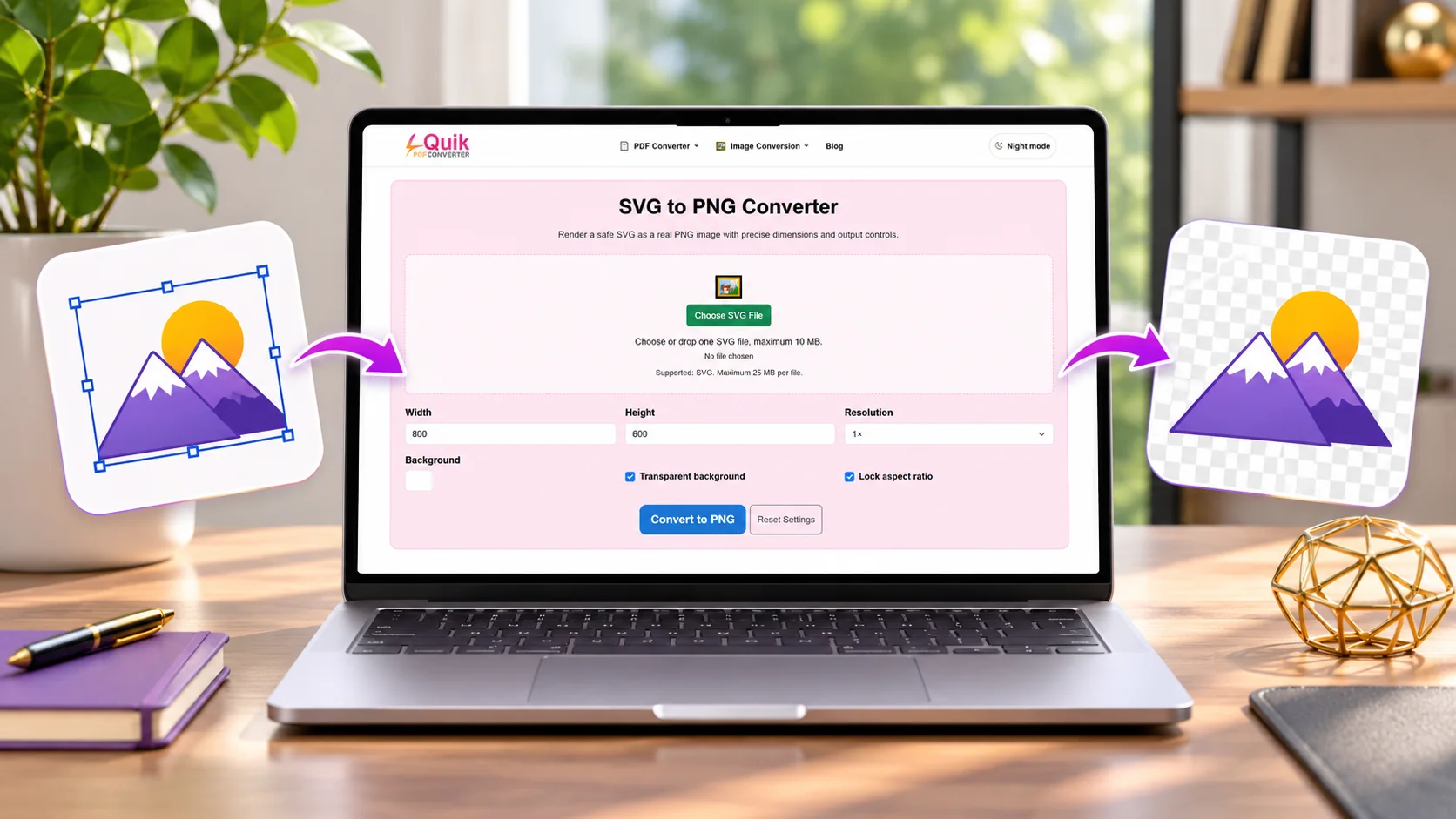
You can use the QuickConvertPDF SVG to PNG converter to get started.
Follow these steps:
Step 1: Open the SVG to PNG Converter
First, visit the QuickConvertPDF SVG to PNG tool in your web browser.
You can open it on a desktop computer, laptop, tablet, or phone. Make sure you have a working internet connection.
Step 2: Upload Your SVG File
Choose the SVG file you want to convert from your device.
Before uploading, check that you have selected the correct file. If you have several logo versions, make sure you choose the one you actually want to use.
Step 3: Start the Conversion
Follow the options shown by the converter and start the conversion process.
The tool will process your SVG and create a PNG image. The final appearance depends on the original SVG and the converter's supported settings.
Step 4: Download Your PNG Image
When the conversion is complete, download the resulting PNG file to your device.
Give it a clear file name so you can find it easily later.
Step 5: Check the Transparent Background
Open the downloaded PNG in an image editor or another application that can display transparency.
Some image viewers show transparent areas as white, while others use a grey-and-white checkerboard pattern. This does not always mean the background is actually white.
To check properly, place the PNG over a colored background. If the color shows through the empty areas around the design, the transparency has been preserved.
That is it! Your SVG graphic is now available as a PNG image.
How to Convert SVG to PNG Transparent Without a White Background
One common problem during image conversion is getting a white background instead of a transparent one.
Why does this happen?
In many cases, the original SVG contains a white rectangle or another background shape behind the main artwork. The converter may correctly turn that rectangle into PNG pixels, making the result look like it has a white background.
Here are a few ways to avoid this issue.
Check the Original SVG File
Before converting, open the SVG in a suitable editor or browser.
Look behind the main graphic. If there is a white rectangle covering the entire design, the SVG may have a solid background.
If you can edit the file, remove that background shape before conversion.
Choose a Converter That Preserves Transparency
Not every conversion tool handles transparency in the same way.
Use a tool that supports transparent PNG output. If the converter provides background options, check that you have not selected a solid white or colored background.
Test the PNG on Different Colors
A transparent image can look different depending on the background behind it.
Try placing the downloaded PNG over:
- A white background.
- A black background.
- A light-colored background.
- A dark-colored background.
This helps you check whether the edges look clean and the transparent areas are working correctly.
Remember That PNG Supports Alpha Transparency
PNG can store transparency information through an alpha channel. This allows individual pixels to be fully transparent, fully visible, or partly transparent.
For example, the edges of a smooth logo may contain partly transparent pixels. These help the graphic blend naturally with the background.
The W3C PNG specification describes how PNG stores transparency information, including alpha values.
SVG vs. PNG: What Is the Difference?
Both SVG and PNG are useful image formats, but they work differently.
| Feature | SVG | PNG |
|---|---|---|
| Image type | Vector | Raster |
| Image structure | Shapes, paths, and drawing instructions | Pixels |
| Resizing | Can scale without ordinary pixelation | Can become blurry when enlarged |
| Transparency | Supported | Supported |
| Best for | Logos, icons, scalable graphics | Web graphics, screenshots, transparent images |
| Editing | Often editable as vector artwork | Usually edited as pixels |
| Compatibility | Varies between apps and platforms | Widely supported |
Which format should you choose?
Choose SVG when you need to resize or edit vector artwork without losing its sharpness.
Choose PNG when you need a widely supported image file, especially for designs that require a transparent background.
You do not have to use only one format. You can keep the original SVG for future editing and create PNG copies whenever a project requires them.
How to Choose the Right PNG Size
Converting an SVG to PNG involves more than changing the file extension. You also need to think about the output dimensions.
SVG images can scale to different sizes, but PNG images have a fixed pixel width and height.
For example, a PNG that is 200 pixels wide may look fine in a small icon area. However, it may look blurry if you stretch it across a large banner.
Here are some useful tips:
For Website Logos
Choose dimensions that match the space where the logo will appear. If your website needs a larger logo, export a PNG with enough pixels to keep it clear.
For Social Media Graphics
Use the dimensions required by your design or social platform. If you are adding a logo to a larger post, make sure the PNG is large enough to remain sharp.
For Presentations
A medium or large PNG usually works well for presentation slides. Avoid stretching a very small image to fill a large part of the slide.
For Small Icons
You can use smaller PNG dimensions for icons, but check that thin lines and small details remain visible.
Helpful tip: If you are unsure about the required size, create a larger PNG and resize it down when needed. Enlarging a small PNG later can reduce image quality.
Common SVG to PNG Conversion Problems and Solutions
Sometimes, your converted PNG may not look exactly like the original SVG. Here are a few common problems and ways to fix them.
1. The PNG Has a White Background
Possible reason: The original SVG contains a white background shape, or the converter added a background during export.
Solution: Check the original SVG and remove any unwanted background shape. If available, use a transparent background setting during conversion.
2. The Image Looks Blurry
Possible reason: The PNG was exported at a small size and then enlarged.
Solution: Convert the SVG again using larger output dimensions. Choose a size that matches your intended use.
3. Some Fonts Look Different
Possible reason: The SVG uses a font that is not available in the conversion environment.
Solution: If you control the original design, consider converting text into vector paths before exporting. This can help preserve the appearance of the lettering.
4. The Image Is Cropped
Possible reason: The SVG may have an incorrect viewBox or unusual dimensions.
Solution: Check the SVG's canvas and viewBox settings. Make sure the full artwork fits inside the intended image area. SVG's viewBox and preserveAspectRatio settings affect how artwork fits into a viewing area. You can learn more in MDN's preserveAspectRatio guide.
5. The PNG Looks Different From the Original
Possible reason: Some SVG effects, filters, gradients, or fonts may not render identically in every converter.
Solution: Compare the output with the original SVG. If important details are missing, try a converter that supports the features used in your design.
Frequently Asked Questions
1. How do I convert SVG to PNG with a transparent background?
Open an SVG-to-PNG converter, upload your SVG file, and start the conversion. Make sure the original SVG does not contain an unwanted background shape. Download the PNG and test it over a colored background to confirm transparency.
2. Can I convert SVG to PNG online for free?
Yes. You can use an online SVG-to-PNG converter without installing desktop software. Upload your SVG, follow the conversion steps, and download the PNG file. Check the tool's available features and limits before processing.
3. Does converting SVG to PNG reduce image quality?
SVG is a vector format, while PNG is a raster format. The PNG has a fixed pixel size, so it may lose sharpness if enlarged beyond its exported dimensions. Choose a suitable output size to keep the image clear.
4. Can I use SVG to PNG for social media?
Yes. PNG is a practical format for social media graphics, logos, and icons. Convert your SVG to PNG, choose dimensions suitable for your design, and upload the image to your preferred platform.
5. Does PNG support a transparent background?
Yes. PNG supports alpha transparency, which allows parts of an image to be transparent or partly transparent. However, the converted image will only have transparent areas if the original artwork and conversion settings preserve them.
Conclusion
Converting SVG to PNG is a simple way to make vector graphics easier to use in websites, documents, presentations, and social media designs.
SVG is a great format for artwork that needs to scale without losing sharpness. PNG is a practical choice when you need a familiar image format with transparent background support.
The most important thing is to check your original SVG, choose the right output size, and confirm that the downloaded PNG keeps its transparency.
If you need a quick way to change your image format, try the QuickConvertPDF SVG to PNG converter. Follow the simple steps, download your PNG, and use your graphic in your next project.