Have you ever downloaded an image from a website and noticed that it ends with .webp instead of .jpg? You try to upload it to a form, open it in an older program, or share it with someone, but the file does not work as expected.
This can be frustrating, especially when you need the image right away.
The good news is that you can change the format without complicated editing software. When you convert WebP to JPG, you create an image file that is widely supported by computers, phones, websites, and many editing applications.
JPG is a familiar format for photographs and everyday image sharing. It can also be useful when a website or application does not accept WebP files.
In this guide, you will learn how to convert WebP to JPG online for free, why you might need to do it, how to protect image quality, and what happens if your WebP image has a transparent background. Let's begin!
What Is a WebP File?
WebP is an image format developed by Google. It was designed to make images smaller while keeping good visual quality.
You may have seen WebP images when downloading pictures from websites. Many websites use this format because smaller images can help reduce page loading time and data use.
WebP supports both lossy and lossless compression. It can also support transparency and animation, which makes it useful for different kinds of images.
For example, a website may display a product photograph in WebP format. When you save that image to your device, it may download as a .webp file instead of a JPG.
WebP is useful for:
- Website photographs.
- Product images.
- Digital illustrations.
- Graphics with transparent backgrounds.
- Animated images.
Google explains the format and its features in its official WebP image documentation .
What Is a JPG File?
JPG, also known as JPEG, is one of the most common image formats in the world.
It is widely used for photographs, personal pictures, product images, and other everyday graphics. Most computers, smartphones, browsers, and image-editing programs can open JPG files.
JPG uses lossy compression. This means it reduces file size by removing some image information. With a suitable quality setting, the result can still look clear to the human eye.
JPG is especially useful when you want to:
- Share photographs through email or messaging apps.
- Upload images to websites and online forms.
- Open images in common editing programs.
- Use photographs in documents and presentations.
- Work with platforms that do not accept WebP.
One important difference is that JPG does not support transparent backgrounds or animation. If you need either of those features, you may need to keep the original WebP or choose another format.
Why Convert WebP to JPG?
WebP is a useful modern format, but there are situations where JPG is more convenient. Here are some common reasons people convert their images.
1. Open Images in More Applications
Some older programs and image viewers may not support WebP files properly.
If you cannot open a downloaded WebP image, converting it to JPG may make it easier to view and edit.
JPG has broad support across many devices and applications, so it is often a practical choice for everyday image use.
2. Upload Images to Online Forms
Some websites accept only certain image formats.
For example, an application form may ask you to upload a JPG or JPEG photograph. If your image is in WebP format, the website may reject it.
Converting WebP to JPG gives you a file in the requested format. You should still check the website's file size and image dimension requirements before uploading.
3. Share Pictures More Easily
You may want to send a downloaded image to a friend, customer, or colleague.
Although many modern devices support WebP, some people may have trouble opening it in their preferred application. JPG is a familiar format and is often easier to share.
4. Use Images in Documents
You may need to insert a photograph into a Word document, presentation, report, or other project.
Some programs support WebP, while others may have limited support. A JPG copy can be a convenient alternative when you need a commonly supported image format.
5. Edit Images in Different Programs
If your preferred image editor does not handle WebP correctly, converting the file to JPG may help.
You can then crop the image, adjust its brightness, add text, or use it in a design project.
However, keep the original WebP file if you may need to preserve its transparency, animation, or original image data.
How to Convert WebP to JPG Online Free
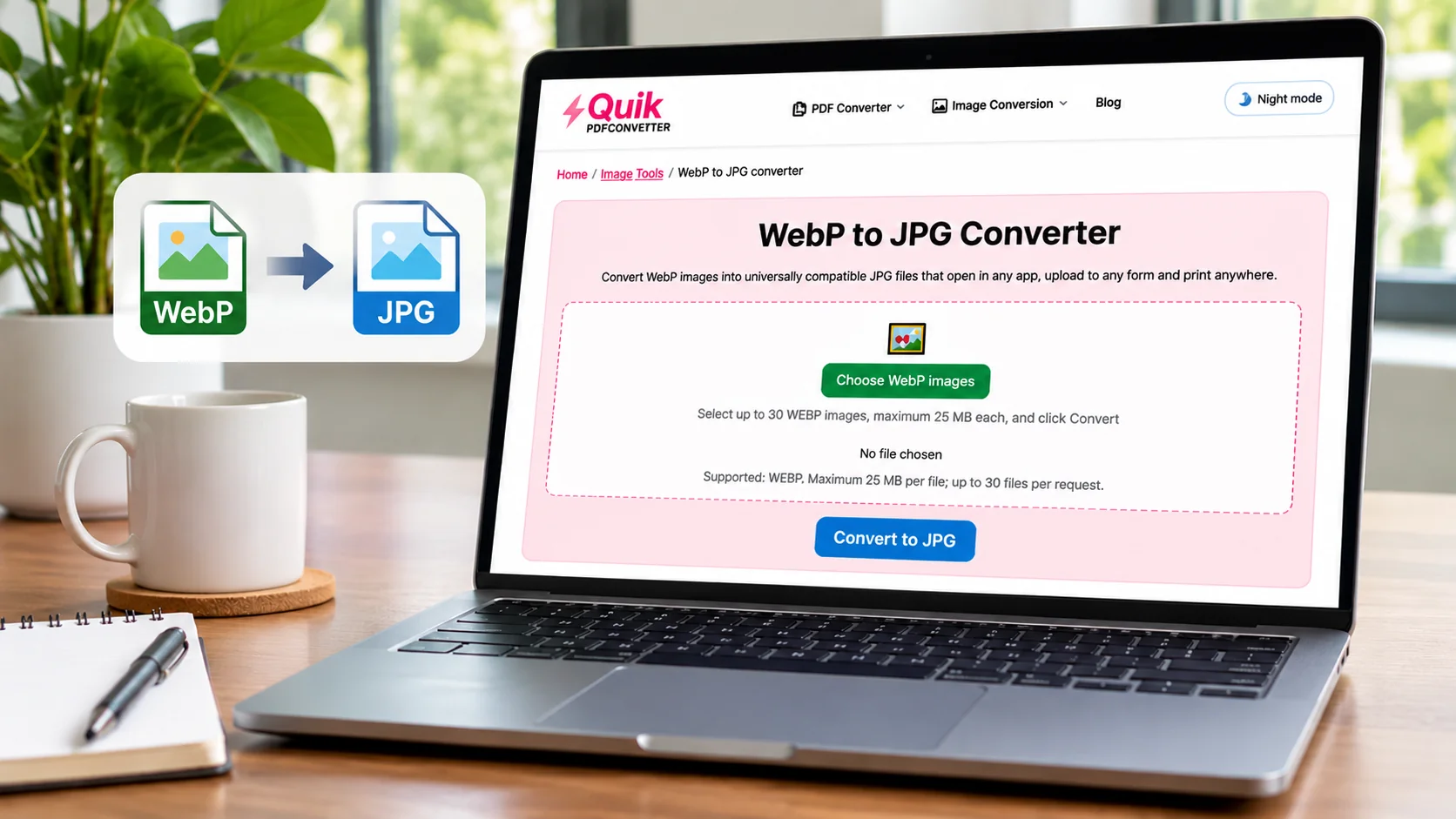
You do not need to be a professional designer to change an image format. An online WebP-to-JPG converter can make the process simple.
Follow these general steps with a trusted online converter that supports WebP input and JPG output.
Step 1: Open a WebP to JPG Converter
First, open an online tool that supports WebP-to-JPG conversion in your web browser.
Make sure the tool clearly lists WebP as an input format and JPG or JPEG as an output format.
You can use a computer, laptop, tablet, or smartphone, depending on the converter's supported devices.
Step 2: Upload Your WebP Image
Select the WebP image you want to convert from your device.
Check the file name before uploading. If you have several images with similar names, make sure you choose the correct one.
If the image is important, keep a separate copy of the original WebP file.
Step 3: Start the Conversion
Follow the instructions displayed by the converter and start the process.
The tool will read the WebP image and create a JPG version.
If the converter provides quality or background options, review them before continuing. Remember that JPG cannot preserve transparent areas.
Step 4: Download Your JPG Image
When the conversion is complete, download the new JPG file.
Save it in a folder where you can find it easily. You can also rename it to describe the image or its purpose.
Step 5: Check the Converted Image
Open the downloaded JPG using your image viewer or browser.
Compare it with the original WebP image. Check the colors, edges, faces, text, and other important details.
If the result looks clear enough for your needs, you can now share it, upload it, or add it to your project.
Does Converting WebP to JPG Reduce Image Quality?
This is an important question.
WebP supports both lossy and lossless compression, while JPG uses lossy compression. As a result, converting a WebP image to JPG may remove some image information.
However, that does not mean every converted image will look noticeably worse.
The result depends on several things:
- The quality of the original WebP image.
- Whether the original WebP used lossy or lossless compression.
- The JPG quality setting used during conversion.
- The image dimensions.
- The amount of detail in the picture.
For example, a photograph with smooth colors may still look good after conversion. But an image with tiny text, thin lines, or sharp edges may show compression marks more easily.
Tips to Keep Good Image Quality
Choose a high-quality setting: If the converter offers JPG quality controls, choose a suitable high setting rather than strong compression.
Avoid repeated conversions: Do not repeatedly save the same image as JPG. Each lossy save may introduce additional quality loss.
Keep the original file: Save your WebP image as a backup. This gives you a source to return to if you need another version.
Use suitable dimensions: Avoid making the image unnecessarily small. Choose dimensions that match the place where you plan to use it.
Check the final result: Open the converted image and inspect it before sharing or uploading it.
The goal is not simply to create the smallest possible file. It is to find a good balance between file size and visual quality.
What Happens to a Transparent WebP Background?
WebP supports transparency, which means some WebP images have no solid background behind the main subject.
For example, a logo may have transparent space around its design. This allows you to place it over different colors without showing a solid rectangle.
JPG does not support transparency.
So, what happens when you convert a transparent WebP to JPG?
The transparent areas must be filled with a solid color. Depending on the converter, the result may have a white or another colored background.
Example: A Logo With a Transparent Background
Imagine you have a company logo with transparent space around it.
In WebP format, you can place the logo over a black, blue, or white design. The background behind the logo remains visible.
After converting it to JPG, those transparent areas become solid. If they turn white, you may see a white box around the logo when placing it on a dark background.
Should You Convert Transparent WebP Images to JPG?
It depends on your needs.
Use JPG when you need a regular photograph or an image with a solid background.
Keep WebP or use PNG when you need transparent areas. PNG is a common choice for transparent logos, icons, and graphics.
If the converter offers a background color option, check it before converting. Do not assume that every tool allows you to choose a background color.
WebP vs JPG: Which Format Should You Choose?
Both formats have advantages. The best choice depends on what you want to do with your image.
| Feature | WebP | JPG |
|---|---|---|
| Compression | Lossy and lossless | Lossy |
| Transparency | Supported | Not supported |
| Animation | Supported | Not supported |
| Image quality | Good quality at efficient file sizes | Depends on compression settings |
| Compatibility | Supported by modern browsers and many apps | Very widely supported |
| Common uses | Website images and modern graphics | Photos, uploads, and everyday sharing |
Choose WebP When:
- You want efficient image compression.
- You need transparent areas.
- You are using images on a modern website.
- You need an animated image.
- Your applications support WebP.
Choose JPG When:
- A website specifically asks for JPG or JPEG.
- You need a familiar format for sharing photographs.
- Your editing program does not support WebP.
- You need a still image with a solid background.
For website owners, WebP can be an excellent format for online images. For everyday sharing and compatibility, JPG is often more convenient.
You can read the MDN image format guide for more information about the strengths and limitations of common image formats.
Can You Convert WebP to JPG on a Phone?
Yes. You can convert WebP images using a supported online converter through your phone's browser.
On iPhone
- Open Safari or another browser.
- Visit an online WebP-to-JPG converter.
- Select your WebP image from your device.
- Follow the conversion instructions.
- Download the JPG file.
- Check your Files or Photos app for the saved image.
The exact download location may depend on your browser and device settings.
On Android
- Open Chrome or another browser.
- Visit a WebP-to-JPG converter.
- Choose the WebP image from your phone.
- Start the conversion.
- Download the JPG image.
- Find it in your Downloads folder or file manager.
On Windows and Mac
The process is similar on a desktop computer. Open a supported online converter, upload the WebP image, start the conversion, and download the JPG file.
You do not need to learn a separate process for every device. The main steps remain almost the same.
Common WebP to JPG Conversion Problems and Solutions
Sometimes, the converted image may not look or work as expected. Here are a few common problems and ways to fix them.
1. The Image Has a White Background
Possible reason: The original WebP had transparent areas, and JPG cannot preserve them.
Solution: Keep the image in WebP or convert it to PNG if you need transparency. If you must use JPG, choose a suitable solid background before conversion if your tool supports that option.
2. The Converted Image Looks Blurry
Possible reason: The JPG quality setting was too low, or the image was resized.
Solution: Try a higher quality setting and avoid unnecessary resizing. Keep the original WebP file so you can create another version if needed.
3. The File Will Not Upload
Possible reason: The website may have a file size limit or specific image dimension requirements.
Solution: Check the website's upload instructions. You may need to resize the image or reduce its file size after conversion.
4. The Image Does Not Open
Possible reason: The download may be incomplete, or the file may not have been converted correctly.
Solution: Download the file again and try opening it in another trusted image viewer. Check that the downloaded file is actually a JPG or JPEG.
5. An Animated WebP Becomes a Still Image
Possible reason: JPG does not support animation.
Solution: If you need the movement, keep the original animated WebP or choose another animation format supported by your intended platform.
Frequently Asked Questions
1. How do I convert WebP to JPG online for free?
Open an online converter that supports WebP input and JPG output. Upload your WebP image, start the conversion, and download the new JPG file. Check the result before using it.
2. Is WebP better than JPG?
WebP can provide smaller files at similar visual quality and supports transparency and animation. JPG has broader historical compatibility and is widely accepted by websites and applications. The better format depends on your needs.
3. Can I convert WebP to JPG without losing quality?
You cannot guarantee zero quality loss because JPG uses lossy compression. However, a high-quality setting can help keep the converted image looking clear. Always save the original WebP file.
4. Can I convert a transparent WebP image to JPG?
Yes, but JPG cannot preserve transparency. Transparent areas will become a solid background color. Keep WebP or choose PNG if you need a transparent image.
5. Can I convert WebP to JPG on my iPhone or Android phone?
Yes. You can use a supported online converter in your mobile browser. Upload the WebP image, follow the conversion steps, and download the JPG file to your device.
Conclusion
WebP is a useful image format because it supports efficient compression, transparency, and animation. However, some websites, applications, and devices may work more conveniently with JPG files.
Learning how to convert WebP to JPG gives you a simple way to make images easier to upload, open, edit, and share.
Before converting, remember three important things: choose a suitable JPG quality setting, keep a copy of the original WebP, and check whether the image needs transparency or animation.
If you also work with PNG images and need to change their format, you can try the QuickConvertPDF PNG to JPG converter .
Choose the right image format for each project, check the final result, and keep your image files organized.