Need to change a PDF, turn photos into one file, or make a large document easier to share? You don't need to buy software or create an account.
Use our free online PDF tools.
With an online PDF converter free from signup forms and software installs, you can handle everyday document tasks right in your browser. You can convert images, change Word files into PDFs, remove pages, and make documents easier to manage.
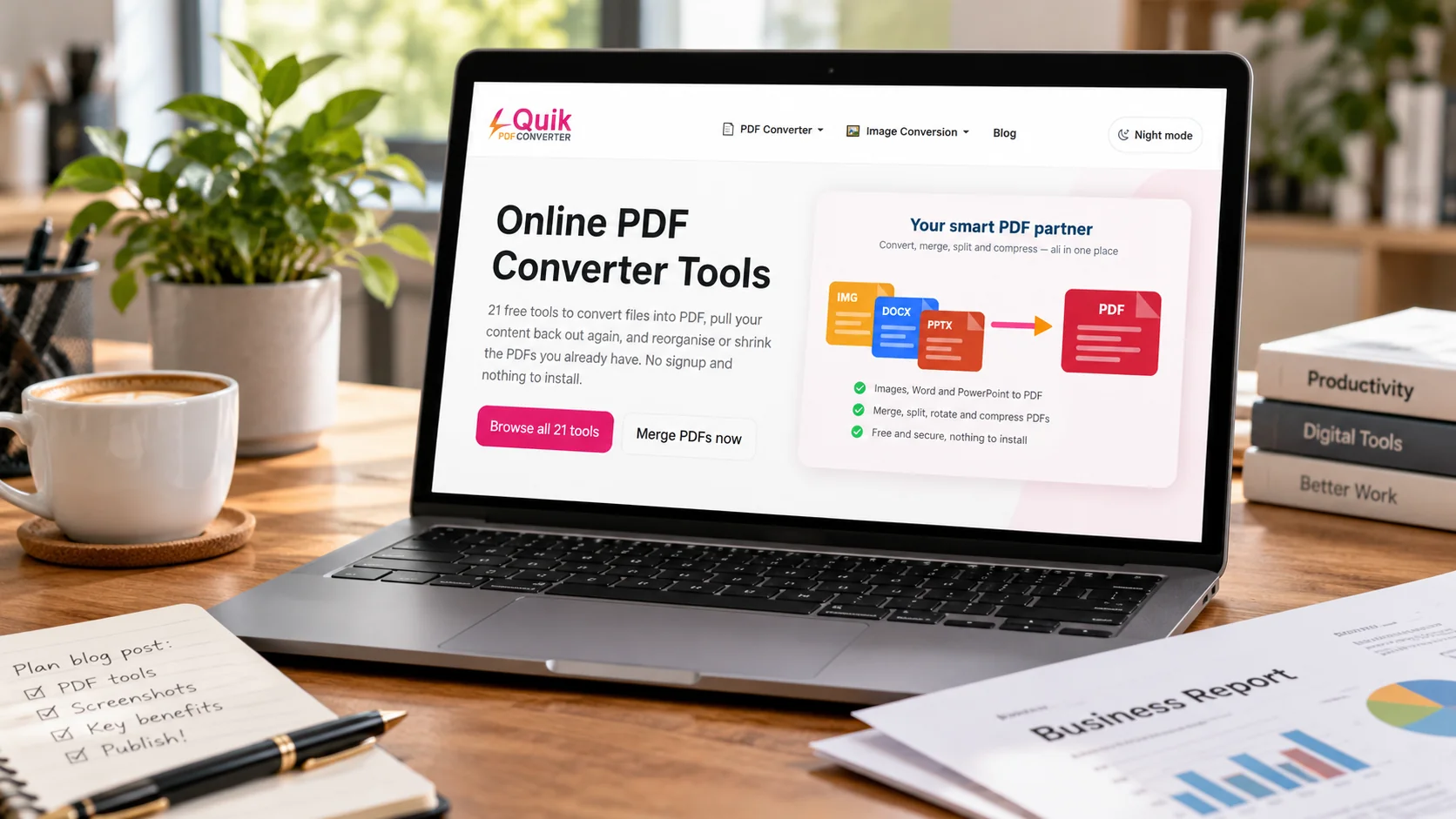
QuickConvertPDF brings 21 free PDF tools together in one place. You can use them on your computer, phone, or tablet.
This guide explains what each tool does, how to use it, and which one to choose for your next task.
What Is an Online PDF Converter?
An online PDF converter is a web tool that changes files into PDF format or turns PDFs into other file types.
For example, you may have a school project saved as a Word document. You can convert to PDF before sending it to your teacher. The PDF is easier to share because its page layout is designed to stay consistent across devices.
You can also convert from PDF when you need to edit text, save pages as pictures, or copy information into another document.
A good converter makes these tasks simple. You upload a supported file, choose what you want to do, and download the result.
How to Convert PDF Files Online for Free
You can use the free online PDF converter tools on QuickConvertPDF without installing an app.
Follow these simple steps:
-
Open the converter: Visit QuickConvertPDF and find the PDF tool you need.
-
Choose your file: Select a PDF, image, or supported document from your device.
-
Check your options: Arrange pages or select the settings available for that tool.
-
Start the process: Click the conversion or action button.
-
Download your file: Save the finished document and open it to check the result.
The steps may look a little different for each tool, but the basic process stays simple.
For the best result, always check that your text, pictures, and pages look right after conversion.
21 Free Online PDF Tools You Can Use Without Signup
Not every PDF task needs the same tool. Some tools create PDFs, while others help you edit, organize, or protect them.
Here are 21 free PDF tools available on QuickConvertPDF and when you should use each one.
Convert Files to PDF
1. Image to PDF Converter
Have several photos that you want to send as one document? The Image to PDF converter combines JPG, JPEG, PNG, WebP, and AVIF pictures into one PDF.
You can arrange your images before converting them. This is useful for school notes, receipts, and scanned pages. The tool accepts up to 30 images, with a 25 MB limit for each image.
2. Word to PDF Converter
Word files are easy to edit, but their layout can change when someone opens them with different software.
The Word to PDF converter changes DOC, DOCX, RTF, and ODT files into PDFs. Use it for reports, letters, homework, and other documents. Check the final file because some fonts or page layouts may change.
3. PowerPoint to PDF Converter
Need to share your presentation without asking someone to open PowerPoint?
The PowerPoint to PDF converter turns PPT, PPTX, and ODP slides into a PDF document. Each slide becomes a page that others can view or print. It is useful for class presentations, meeting notes, and training materials.
4. HTML to PDF Converter
An HTML file contains the code used to show content on a web page.
The HTML to PDF converter turns supported document HTML into a PDF. You can select common paper sizes such as A4, Letter, or Legal. It is helpful when you need a printable copy of HTML content.
Convert PDF to Other Formats
5. PDF to Word Converter
Sometimes a PDF contains text you need to change. Copying everything by hand can take a long time.
The PDF to Word converter converts text-based PDFs into DOCX documents. You can then open the result in a word processor. Tables, images, and complex page designs may need a little cleanup.
6. PDF to JPG Converter
Want to use a PDF page as an image?
The PDF to JPG converter changes PDF pages into JPG or PNG pictures. It can help you save charts, posters, or document pages as images. For PDFs with many pages, the tool provides the converted pictures in a ZIP file.
7. PDF to TXT Converter
The PDF to TXT converter takes embedded text from a PDF and saves it as plain text.
It is useful when you only need the words, not the original page design. You can use the text in notes or other documents. It works with PDFs that already contain selectable text.
8. OCR PDF to Text
A scanned PDF may look like a normal document, but its words are often stored as part of a picture.
OCR stands for Optical Character Recognition. The OCR PDF to Text tool reads printed text in scanned PDFs and extracts it for copying or editing. It supports English and Urdu text, though unclear scans may produce mistakes.
Organize, Edit, and Protect PDFs
9. Merge PDF
Do you have three PDF files that belong together?
The Merge PDF tool combines them into one document in your chosen order. You can use it for assignments, reports, invoices, or application papers. Combining related files also makes them easier to share.
You can also read this step-by-step guide to merging multiple PDF files for more help.
10. PDF Editor
Sometimes a document needs a small change after it has been saved.
The online PDF Editor helps you work with existing text, add content, and manage pages. It also includes text redaction features. Always review the finished document, especially when changing important information.
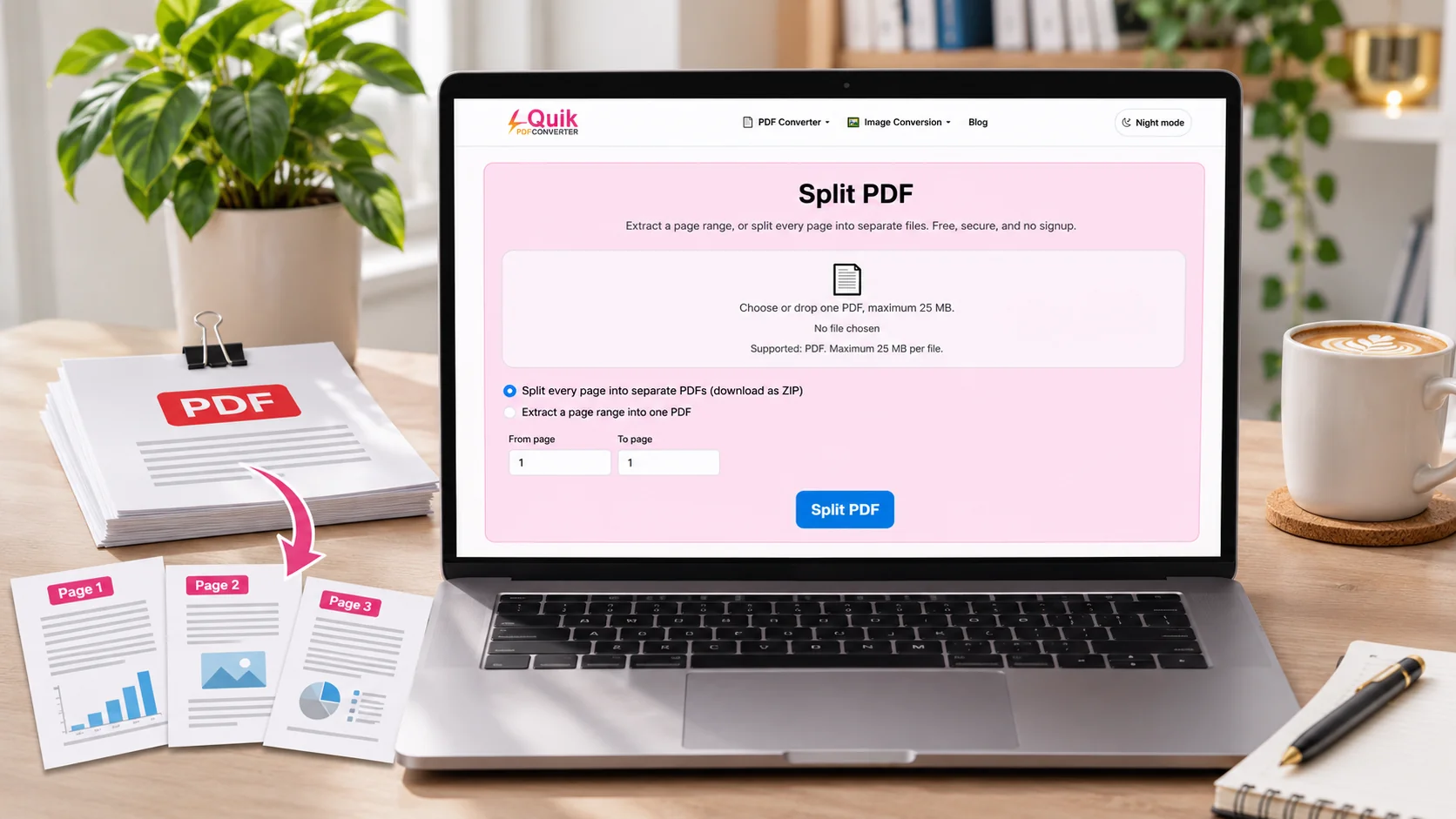
11. Split PDF
You may receive a long PDF but only need a few pages.
The Split PDF tool separates a document into smaller files or selected page ranges. For example, you can take three useful pages from a larger study guide without sending the whole document.
For more details, follow our guide on how to split a PDF into separate pages.
12. Rotate PDF
Scanned pages sometimes appear sideways or upside down.
The Rotate PDF tool changes page orientation by 90, 180, or 270 degrees. This can help when you need to read a scanned letter, print a form, or correct the direction of a document.
13. Delete PDF Pages
Not every page belongs in the final document.
Use the Delete PDF Pages tool to remove blank pages, old information, or extra sections. You can select the page numbers you want to delete. Check your selection before downloading the edited file.
14. Compress PDF
Large PDFs can be difficult to send by email or upload to websites.
The Compress PDF tool tries to reduce file size without losing document data. If it cannot make the file smaller, it returns the original. This is useful when you want to keep your document readable.
15. Extract PDF Pages
Need to keep just one chapter or a few pages?
The PDF Page Extractor lets you choose individual pages or page ranges and save them in a separate PDF. It keeps the original page content and quality, making it useful for notes, forms, and reports.
16. Add Page Numbers
Page numbers help readers follow a long document.
With the Add Page Numbers tool, you can add numbers to a chosen range of PDF pages. It is helpful for study materials, manuals, reports, and other files that have many pages.
17. Add Text to PDF
Need to place a note, label, or short message on a PDF?
The Add Text to PDF tool lets you put new text onto document pages. You can use it to add simple instructions or missing information, then download the updated PDF.
18. PDF Size Checker
Before sharing a file, you may want to know how large it is.
The PDF Size Checker displays details such as file size, page count, dimensions, and orientation. It can help you decide whether a document needs compression before an upload.
19. Protect PDF
Some documents should only be opened by people with the correct password.
The Protect PDF tool adds AES-256 password protection to a PDF. It creates an encrypted copy without changing the original file. Choose a strong password and store it safely.
20. PDF Metadata Checker
PDF files can contain extra details beyond the visible pages.
The PDF Metadata Checker helps you inspect information such as document dates, identifiers, PDF version, and encryption status. It is useful when you need to learn more about a file before sharing or saving it.
21. Unlock PDF
Have a password-protected PDF that you are allowed to open?
The Unlock PDF tool can remove opening protection when you know the current password. This creates a copy that is easier to access. It does not bypass a password you do not know.
How to Convert Image to PDF: JPG, JPEG, and PNG
Many people want to know how to convert image to pdf because they need to submit photos as one document.
The process is simple. Open the Image to PDF tool, choose your pictures, arrange them, and select the conversion button.
How to Convert PNG to PDF
If you are wondering how to convert png to pdf, you can use the same Image to PDF tool.
Choose your PNG image, check its position, and convert it. PNG is often used for screenshots, graphics, and images with sharp text.
Remember that converting an image into a PDF does not make the words inside the picture editable.
How to Convert JPEG to PDF
You can also convert jpeg to pdf with the Image to PDF tool.
Select your JPEG photos and arrange them in the order you want. The converter combines them into a PDF that is easier to print, store, or send.
For example, you can turn pictures of receipts into a single document for your records.
Can You Convert PDF to Excel Online?
Yes. You can convert pdf to excel when you need to work with tables or numbers from a PDF.
For this task, you need a service that supports Excel output. QuickConvertPDF's current 21-tool collection does not include a dedicated PDF-to-Excel converter.
One option is AltFTool's browser-based PDF tools, which include PDF-to-Excel conversion.
Keep in mind that a scanned table may not turn into perfect rows and columns. Always check the numbers, headings, and cell positions after conversion.
Other Free Online PDF Converter Options
QuickConvertPDF is not the only place to work with PDFs. Other services may support different file types or conversion methods.
For example, the PDF24 online PDF converter supports common document, spreadsheet, presentation, and image formats. It provides conversion in both directions and does not require registration.
You can also try QuillBot's PDF converter when you need to change supported files to or from PDF without downloading software.
You may come across names such as freepdfconvert while searching for a converter. Before choosing any service, check the available formats, file limits, privacy policy, and whether a free download is offered.
The best tool depends on your file and what you want to do with it.
Is It Safe to Use a Free Online PDF Converter?
Online converters can be useful, but file privacy still matters.
QuickConvertPDF states that it protects uploads and downloads with HTTPS encryption and deletes conversion files after processing. It also offers PDF tools without requiring an account.
Even so, you should take care with private documents. Avoid uploading medical records, bank details, passwords, or other sensitive information unless the service is approved for that use.
Keep an original copy of important files. This gives you a safe starting point if the converted result has a problem.
Common PDF Conversion Problems and How to Fix Them
The converted PDF looks different. Fonts, tables, or images may have moved. Open the finished file and compare it with the original before sharing it.
The PDF is too large. Try the free PDF compressor. Remember that some files cannot be reduced much without changing their contents.
Text cannot be selected. Your PDF may contain scanned pictures instead of real text. Try an OCR tool to extract the words.
The file will not upload. Check its format and size. If the file is too large for the selected tool, use a smaller file or split the document where appropriate.
Frequently Asked Questions
Is there an online PDF converter free to use without signup?
Yes. QuickConvertPDF provides 21 free PDF tools without requiring an account. You can open a tool, choose your file, complete the task, and download the result.
Can I convert PNG and JPG images into one PDF?
Yes. QuickConvertPDF's Image to PDF tool supports PNG, JPG, JPEG, WebP, and AVIF images. You can combine supported image formats into one document.
Can I convert PDF to Word without losing formatting?
You can convert a text-based PDF into Word, but the layout may change. Simple documents usually need less cleanup than files with complex tables, columns, or graphics.
Do I need to install software to convert PDF files?
No. The online tools run through a web browser. You can use them on supported computers, phones, and tablets without installing separate PDF software.
Can I turn a scanned PDF into editable text?
Yes. An OCR tool can read printed words from scanned pages and extract them as text. The result may need corrections if the original image is blurry or hard to read.
What is the maximum file size for PDF conversion?
QuickConvertPDF lists a 25 MB upload limit for individual files on its PDF converter page. Some tools also have limits on the number of files you can use at once. Check the selected tool before uploading.
Final Thoughts
Working with PDF files should not be difficult or expensive. Whether you need to turn images into PDFs, edit a document, split pages, or reduce file size, choosing the right tool makes the job easier.
QuickConvertPDF offers 21 free PDF tools you can use without signup. Start with the task you need, follow the simple steps, and check your downloaded file before sharing it.
For more practical tutorials, visit the QuickConvertPDF blog for PDF and image conversion guides and learn how to manage your files with less effort.