Have you ever received a large PDF file but needed only a few pages from it? Maybe you want to send one page of a report, save a chapter from an eBook, or share a signed page from a document. Sending the whole file can be slow and confusing.
The good news is that you do not need special software to solve this problem. You can learn how to split PDF pages online and create smaller PDF files in just a few steps.
A free online PDF splitter helps you separate pages, extract selected sections, and save only the content you need. You can also split PDF sheets by page number or choose a full page range.
In this guide, you will learn how to split a PDF for free, save one page as a new file, separate multiple pages, and avoid common mistakes. Let's get started!
What Does It Mean to Split PDF Pages?
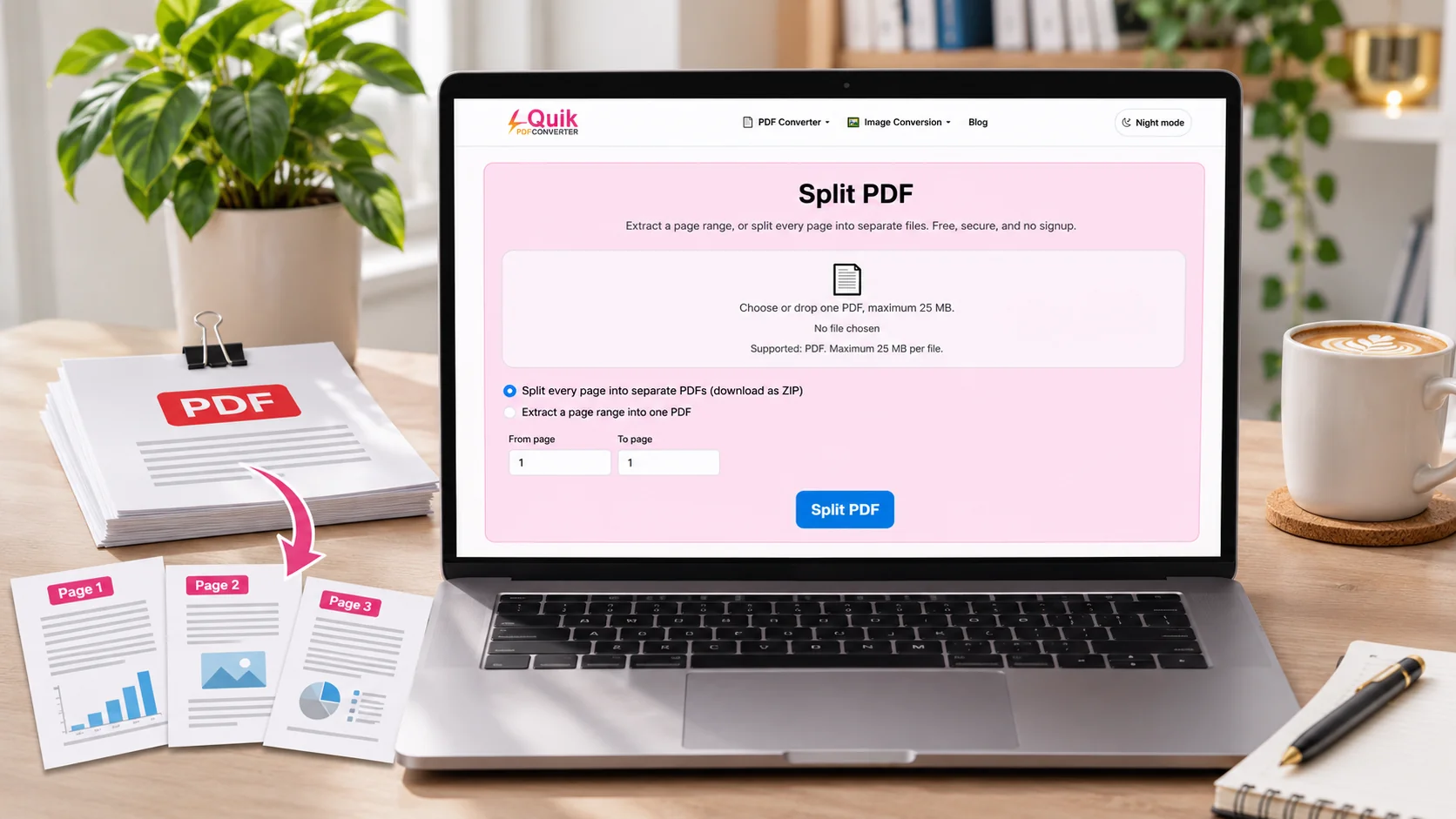
Splitting a PDF means dividing one PDF document into two or more smaller PDF files.
For example, imagine you have a PDF with 30 pages. You only need pages 5 to 10. Instead of sharing all 30 pages, you can split the document and create a new PDF that contains only pages 5 to 10.
You can also separate every page into its own file. This is useful when you have a scanned document with many forms or receipts.
A PDF splitter makes this task simple. You select the pages you need, process the file, and download the new PDF documents.
It is important to understand the difference between splitting and deleting pages:
- Splitting: Creates smaller PDF files from the original document.
- Extracting: Copies selected pages into a new PDF file.
- Deleting: Removes unwanted pages from a document.
These actions may sound similar, but they serve different purposes. Choose the one that matches your needs.
Why Would You Need to Split a PDF?
PDF files are useful because they keep text, images, and page layouts together. However, large documents are not always easy to share or manage.
Here are some common reasons to split PDF files.
1. Share Only Important Pages
Suppose your teacher asks for one page of a 20-page assignment. You do not need to send the entire document. You can extract that page and share it as a separate PDF.
This saves time and makes the file easier to open.
2. Reduce Large PDF Files
A large PDF may take longer to upload, email, or share. Dividing it into smaller parts can make file management easier.
For example, you can split a 100-page report into five files, each containing 20 pages.
3. Separate Business Documents
Businesses often receive PDF files that contain invoices, forms, reports, and other records. Splitting these documents helps keep each item separate.
You can save each invoice or form as its own PDF file.
4. Save Important Study Material
Students often download large books and study guides. Sometimes, they only need one chapter or a few pages.
A PDF page extractor helps them save the required pages without keeping the entire document.
5. Send Documents More Easily
Some websites and email services have file size limits. Splitting a large PDF into smaller files can make it easier to share documents when the original file is too large.
How to Split PDF Pages Online for Free
You can split a PDF without installing a desktop program. An online tool lets you work through your web browser.
Follow these simple steps with the free online PDF splitter from QuickConvertPDF.
Step 1: Open an Online PDF Splitter
First, open the QuickConvertPDF Split PDF tool in your browser.
You can use a computer, laptop, tablet, or phone with a supported web browser. There is no need to search for a complicated desktop program.
Step 2: Upload Your PDF
Choose the PDF file you want to split from your device.
Before uploading, make sure you have selected the correct document. If your file has a similar name to another document, check it carefully.
Wait for the tool to load your PDF.
Step 3: Choose the Pages You Want to Split
Now decide which pages you want in your new PDF files.
You may want to select:
- One page only.
- A group of pages, such as pages 2 to 6.
- Several separate pages.
- Different page ranges.
- Every page as a separate file, if the tool supports this option.
Always check your page numbers before moving to the next step.
Step 4: Split and Download Your PDF
After selecting the pages, start the splitting process.
When the tool finishes, download the new PDF file or files to your device. Open the downloaded documents to make sure they contain the correct pages.
That is it! You have separated the pages without manually copying the text or creating a new document.
Different Ways to Split a PDF File
Not every PDF splitting task is the same. Sometimes you need one page, while other times you need several sections.
Here are the main ways to separate PDF pages.
1. Extract One Page
This is the best choice when you only need a single page from a large PDF.
For example, imagine a 50-page document that contains an important certificate on page 12. You can select page 12 and create a new PDF with only that page.
The original document can remain unchanged, while your new file contains the page you need.
2. Split PDF by Page Range
A page range means a group of pages between two page numbers.
For example:
- Pages 1–5: First section.
- Pages 6–10: Second section.
- Pages 11–15: Third section.
You can use this method to divide a long report into smaller parts.
When you split PDF by page range, check where each section starts and ends. This helps you avoid missing important information.
3. Split Every Page into a Separate File
Sometimes, you may need each page as an individual PDF.
For example, a scanned file may contain 15 separate forms. You want each form saved in its own document.
A tool with a split-every-page option can help you create separate files instead of selecting each page one at a time.
4. Separate Selected Pages
What if you need pages 2, 5, and 9 from a document?
You do not always need a complete page range. Some PDF tools let you select individual pages and combine them into one new PDF.
This is useful when the information you need appears in different parts of the original document.
How Do I Save One Page of a PDF?
This is one of the most common questions people ask when working with PDF files: how do I save one page of a PDF?
The answer is simple. You need to extract the page you want and save it as a new PDF document.
Follow these steps:
- Open an online PDF page splitter.
- Select the PDF file from your device.
- Find the page you want to save.
- Select that page.
- Start the extraction or splitting process.
- Download the new PDF file.
- Open the downloaded file to check the result.
For example, if your document has 25 pages and you only need page 8, select page 8 before processing the file.
You will get a separate PDF containing that page. This is much easier than taking a screenshot because a proper PDF extraction can preserve the original page content.
You can also read Adobe's guide to extracting PDF pages for another explanation of
Tips for Splitting PDF Files Correctly
Splitting a PDF is easy, but a few small checks can help you avoid mistakes.
Check the Page Numbers
Always confirm the page numbers before splitting your document.
Remember that the page number printed on a document may be different from its actual PDF page position. For example, a report may have a cover page without a printed number.
Keep a Copy of the Original PDF
Before making changes, keep the original file on your device.
This gives you a backup if you select the wrong pages or need to repeat the process.
Use Clear File Names
Give each new PDF a name that explains what it contains.
For example:
Chapter-1.pdfInvoice-Page.pdfReport-Part-2.pdfSelected-Documents.pdf
Clear names make it easier to find your files later.
Check the Downloaded Files
Do not assume that everything is correct just because the process finished.
Open each new PDF and check its pages. Make sure the text, images, tables, and other important details appear as expected.
Protect Private Information
If your PDF contains bank details, personal records, contracts, or business information, check the tool's privacy policy before using it.
Avoid uploading confidential documents to websites you do not trust.
Common PDF Splitting Problems and How to Fix Them
Sometimes, a PDF splitter may not work as expected. Here are a few common problems and simple ways to solve them.
The PDF Will Not Upload
Your file may be too large, damaged, or in an unsupported format.
What to do: Check that your document is a valid PDF. Try opening it on your device first. If it is very large, consider using a smaller copy.
The Wrong Pages Were Extracted
This usually happens when page numbers are selected incorrectly.
What to do: Open the original PDF and check the page positions. Select the required pages again, then create a new file.
The Downloaded PDF Will Not Open
A download may be incomplete, or your PDF reader may have a problem.
What to do: Download the file again and try opening it in another trusted PDF reader or browser.
The New PDF Is Missing Some Content
Some documents contain interactive elements, forms, bookmarks, or special features.
What to do: Compare the extracted pages with the original document. If you need to preserve special features, check the output carefully and try another suitable PDF tool if necessary.
Is It Safe to Split PDF Files Online?
Online PDF tools can save time, but privacy should always matter.
Before using any online PDF splitter, check how it handles uploaded files. Look for clear information about file processing, storage, and deletion.
For sensitive documents, consider these simple safety steps:
- Use a trusted website.
- Read its privacy policy.
- Avoid sharing confidential files on unknown platforms.
- Do not upload passwords or private records unless you understand how the service handles them.
- Delete downloaded copies from shared devices when you no longer need them.
Also remember that an HTTPS connection protects data while it travels between your browser and a website, but it does not automatically explain how the website stores or handles your files.
Choose a tool that gives you clear information about its security practices.
Frequently Asked Questions
1. How to split PDF pages for free?
You can use a free online PDF splitter. Open the tool, select your PDF, choose the pages or ranges you want, and start the process. Then download the new PDF files.
2. How do I save one page of a PDF as a separate file?
Upload your PDF to a page extraction tool, select the page you need, and extract it. The tool creates a new PDF containing that page, which you can download separately.
3. Can I split a PDF by page range?
Yes. Many PDF tools let you select a range, such as pages 1–5 or 10–15. This helps you divide a large document into smaller sections.
4. Can I separate every page of a PDF?
Yes, if your PDF splitter supports splitting every page into an individual file. This option is useful for scanned forms, receipts, and documents with separate records.
5. Does splitting a PDF change the original file?
A typical extraction process creates new PDF files and leaves the original document unchanged. However, always keep a backup and check the tool's options before processing your file.
Conclusion
Learning how to split PDF pages can make your daily work much easier. You can extract one page, separate selected pages, divide a large report into smaller sections, or create individual PDF files.
You do not need complicated software for a simple splitting task. With an online PDF splitter, you can choose the pages you need and download a new document in just a few steps.
Whether you are a student, teacher, office worker, or business owner, splitting PDFs helps you share and organize information more easily.
Try the QuickConvertPDF Split PDF tool to separate the pages you need and keep your documents organized.